01 / Basics
Before you start
Revio is a WordPress theme for casino affiliate and review sites: ratings, casino reviews, bonuses, player reviews and complaints.
How it is built
The package has two parts, and they work together:
Revio theme
The look of the site: header, footer, page templates for casinos, bonuses and complaints, colors and fonts.
Revio Core plugin
The content and features: casinos, bonuses, complaints, Gutenberg blocks, player accounts, emails and the demo importer.
Keeping the features in a plugin means your casinos, bonuses and complaints stay safe if you ever switch themes. The theme installs the plugin for you.
Requirements
| What | Minimum | Notes |
|---|---|---|
| WordPress | 6.6 | Always use the latest version. |
| PHP | 7.4 | 8.1 or newer is recommended. |
| PHP memory limit | 128 MB | 256 MB makes the demo import faster. |
| Max upload size | 8 MB | Needed to upload the theme zip and player screenshots. |
| — | The site must be able to send email (sign-up confirmations, complaint notifications). See Emails. |
What is in the download
revio.zip— the theme. The Revio Core plugin is inside it and is installed from the dashboard.revio-child.zip— a child theme for your own code changes (optional).- A link to this documentation.
02 / Setup
Installation
1. Install the theme
- In the dashboard open Appearance → Themes and click Add New Theme, then Upload Theme.
- Choose
revio.zipand click Install Now. Do not upload the whole ThemeForest download — onlyrevio.zip. - Click Activate.
Upload fails with “The link you followed has expired”? Your server limits the upload size. Ask your host to raise upload_max_filesize, or upload the unpacked revio folder to wp-content/themes/ over FTP.
2. Install Revio Core
Right after you activate the theme, WordPress shows a notice that Revio requires the Revio Core plugin.

- Click Begin installing plugin (or open Appearance → Install Plugins).
- Tick Revio Core, choose Install in “Bulk actions” and click Apply.
- After the install, activate it the same way. The plugin comes with the theme, so nothing is downloaded from other sites.
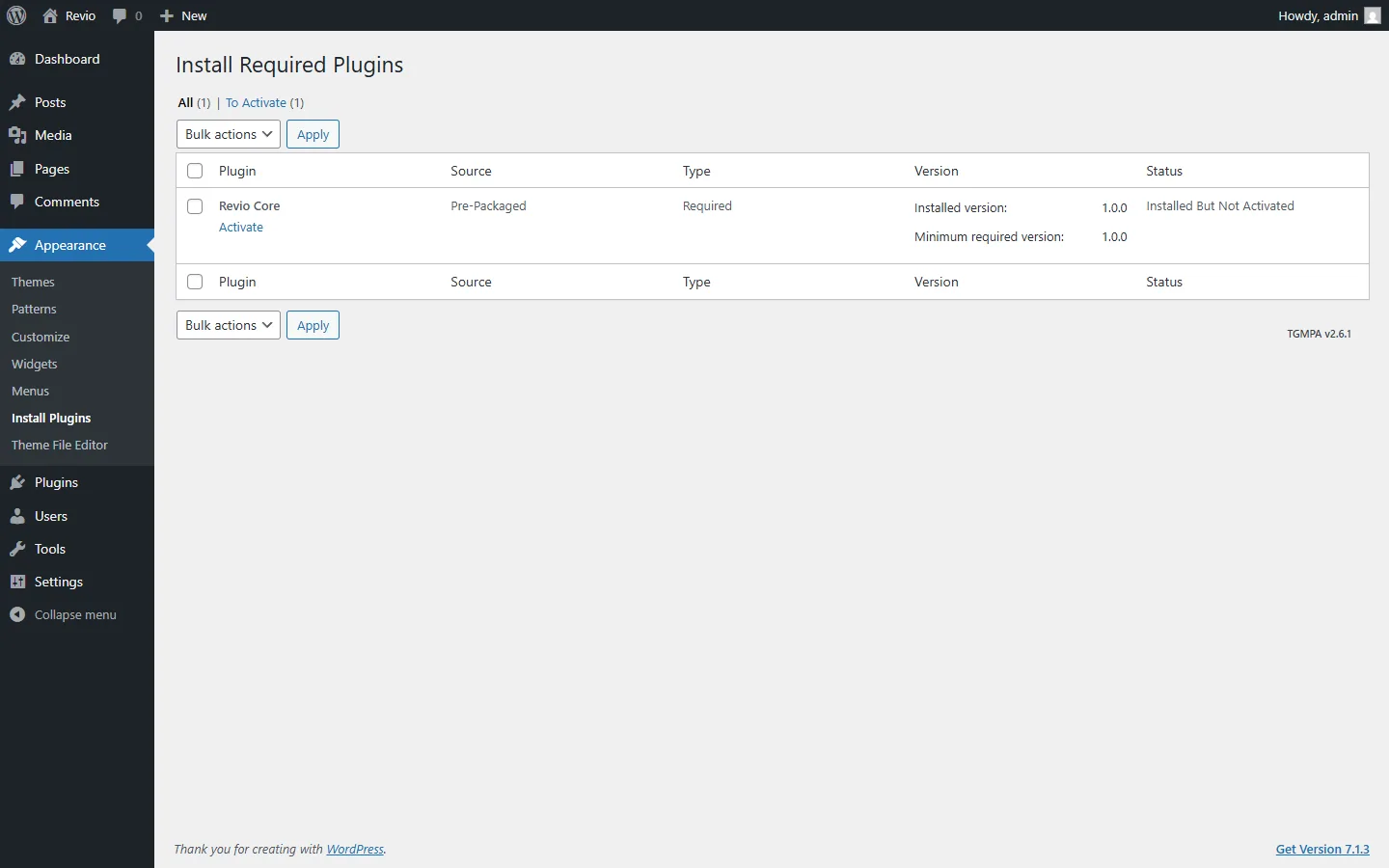
The theme works without the plugin, but then there are no casinos, bonuses, complaints and blocks. Keep Revio Core active.
3. Child theme (optional)
Planning to change PHP templates or add your own code? Install revio-child.zip the same way and activate it instead of Revio. Your changes then survive theme updates. If you only change colors, the logo and content, you do not need it.
4. Permalinks
Open Settings → Permalinks and choose Post name. Casino and bonus addresses then look like /casino/royal-atlas-casino/. The demo import can do this for you.
03 / Content
Demo import
One click fills the site with casinos, bonuses, complaints, reviews, articles, pages and menus — the same as on the live demos.
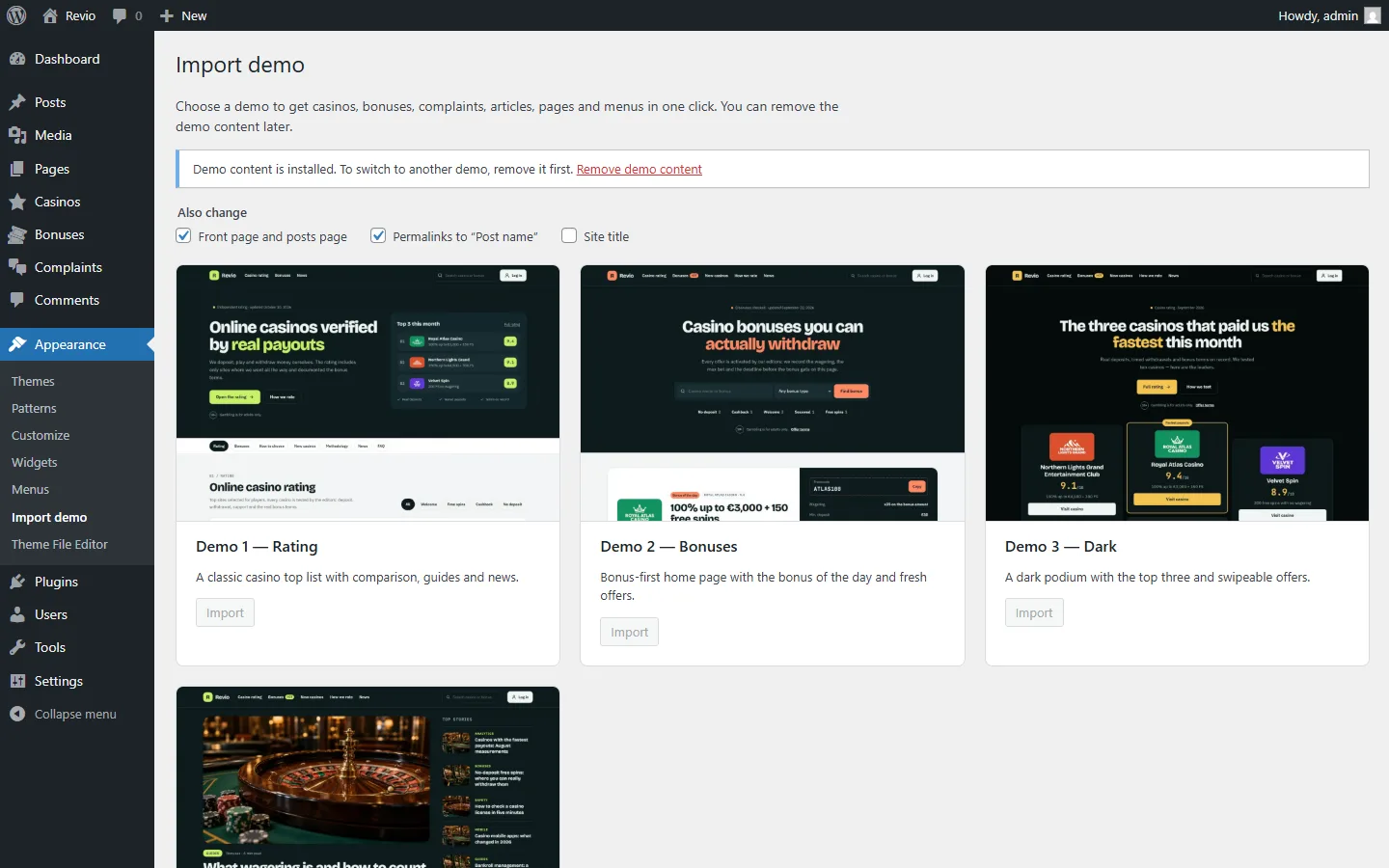
- Open Appearance → Import demo.
- Choose what else to change:
- Front page and posts page — the demo home becomes your front page, “News” the blog page.
- Permalinks to “Post name” — recommended.
- Site title — off by default, so your site name stays.
- Click Import under the demo you like. The progress bar shows each step; keep the tab open until it says “Done” (usually under a minute).
| Demo | Home page | Look |
|---|---|---|
| Demo 1 — Rating | A classic casino top list with comparison, guides and news. | Light, lime accent |
| Demo 2 — Bonuses | Bonus of the day, bonus search and fresh offers. | Light, coral accent |
| Demo 3 — Dark | A podium with the top three casinos and swipeable offers. | Dark, gold accent |
| Demo 4 — Magazine | News-led home page with top stories, reviews and complaints. | Light, sky-blue accent |
What gets imported
- 11 casinos with logos, scores, pros and cons, specifications and reviews.
- 13 bonuses linked to the casinos, with terms and promo codes.
- 3 player complaints with discussions and screenshots.
- News articles, the pages “Your account”, “File a complaint”, “My account”, privacy policy, terms and responsible gambling.
- Menus with badges, colors and the Revio pages settings.
Remove or switch the demo
After an import the screen shows Remove demo content. It deletes only what the import created; your own posts, pages and users stay. Remove the demo before importing another one.
A demo item you edited is still demo content and is removed too. When you build your real site on top of a demo, do not use “Remove demo content” any more — delete the demo casinos you do not need by hand.
04 / Look
Colors, logo and menus
Colors and corners
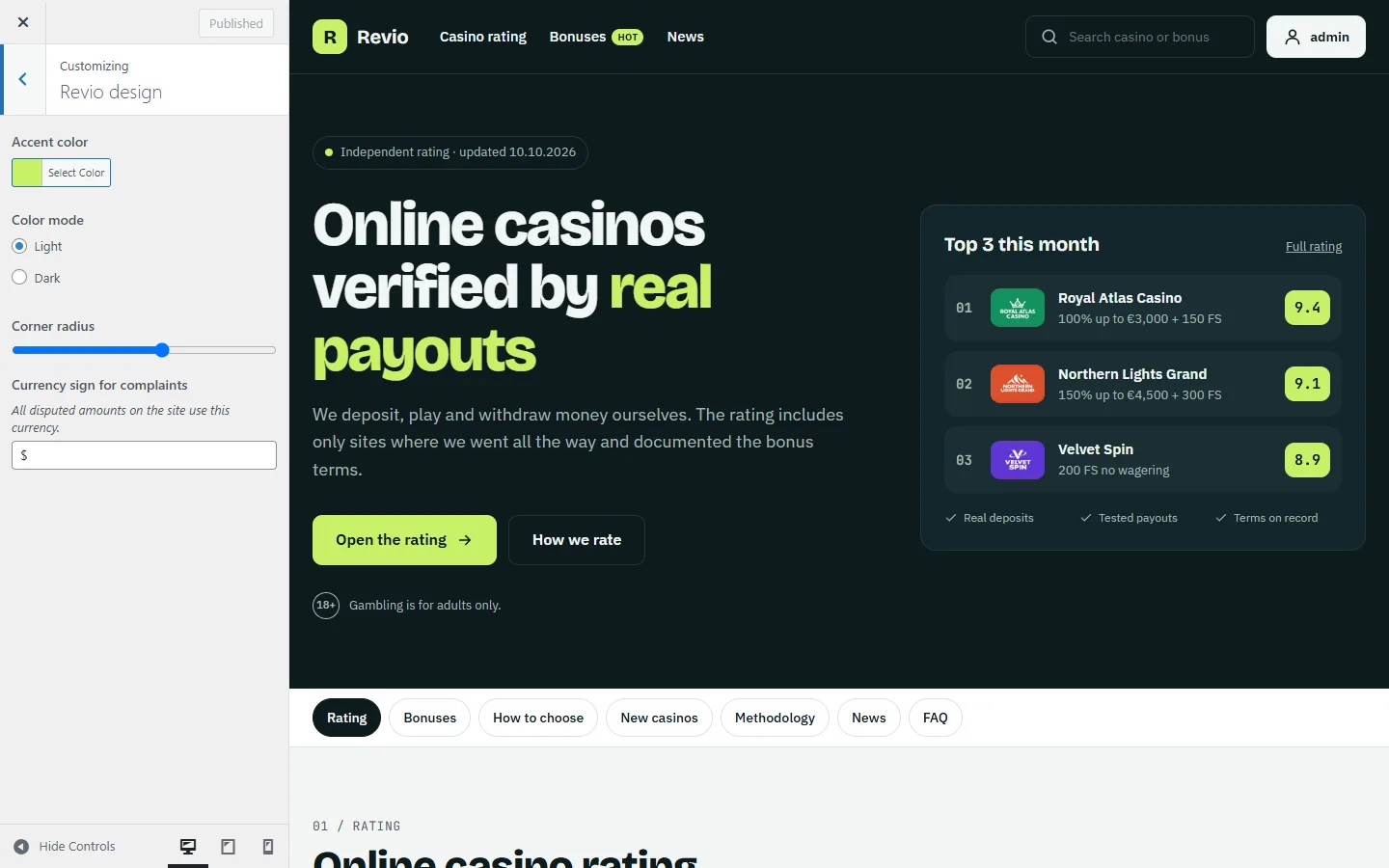
Open Appearance → Customize → Revio design. Changes show live in the preview on the right.
| Setting | What it does |
|---|---|
| Accent color | Buttons, scores, highlights. Text on the accent is always dark, so choose a light, bright color. |
| Color mode | Light or dark site. The first screen and the footer are dark in both. |
| Corner radius | From square (0) to soft (28) corners of cards, buttons and fields. |
| Currency sign for complaints | One currency for all disputed amounts, e.g. $, € or USD. |
Logo and site icon
In Customize → Site Identity upload a logo (recommended 240 × 72 px, PNG or SVG converted to PNG) and a site icon. Without a logo the theme shows the site title.
Menus
The theme has three menu locations: Primary (header), Footer, first column and Footer, second column. Set them in Appearance → Menus. On phones the primary menu opens from the burger button, with its sub-items.
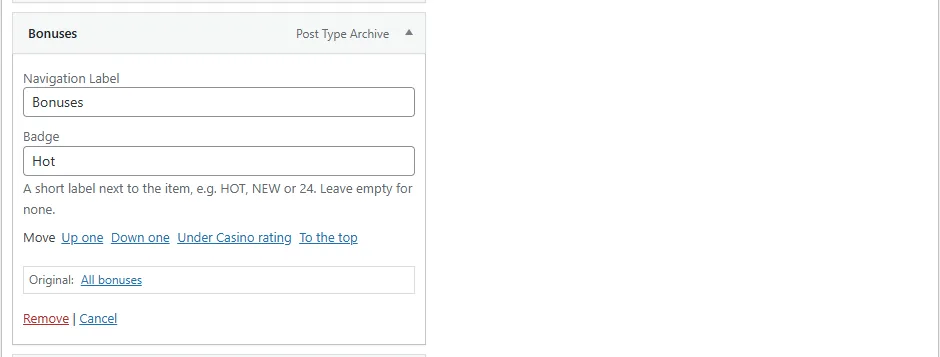
Menu badges
Every menu item has a Badge field: a short label shown next to the item, like HOT, NEW or 24. Open the item, type the badge, save the menu.
Revio pages
Some buttons lead to pages you choose in Customize → Revio pages. The demo import sets them; on a fresh site create the pages first (see Player accounts).
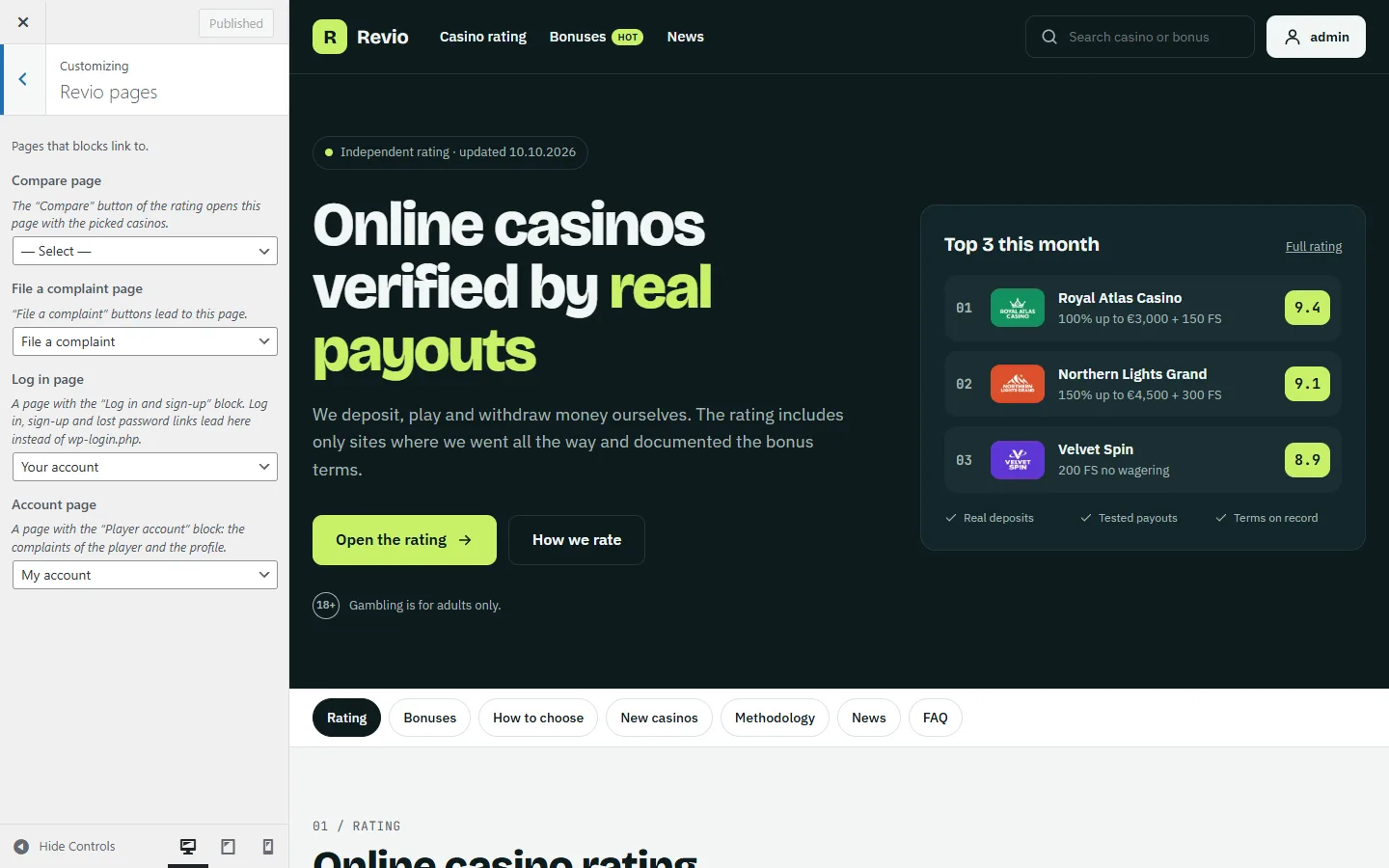
| Page | Put on it | Used by |
|---|---|---|
| File a complaint page | “Complaint form” block | “File a complaint” buttons on casino and complaint pages, the account. |
| Log in page | “Log in and sign-up” block | The header “Log in” button and every log in, sign-up and lost password link. |
| Compare page | “Compare casinos” block | The “Compare” checkboxes and the compare bar of the rating and the casino list. |
| Account page | “Player account” block | The header button of a logged-in player, email links. |
05 / Content
Casinos
Each casino is a review page with its score, bonuses, specifications, player reviews and complaints. The rating, hero and other blocks take their data from here.
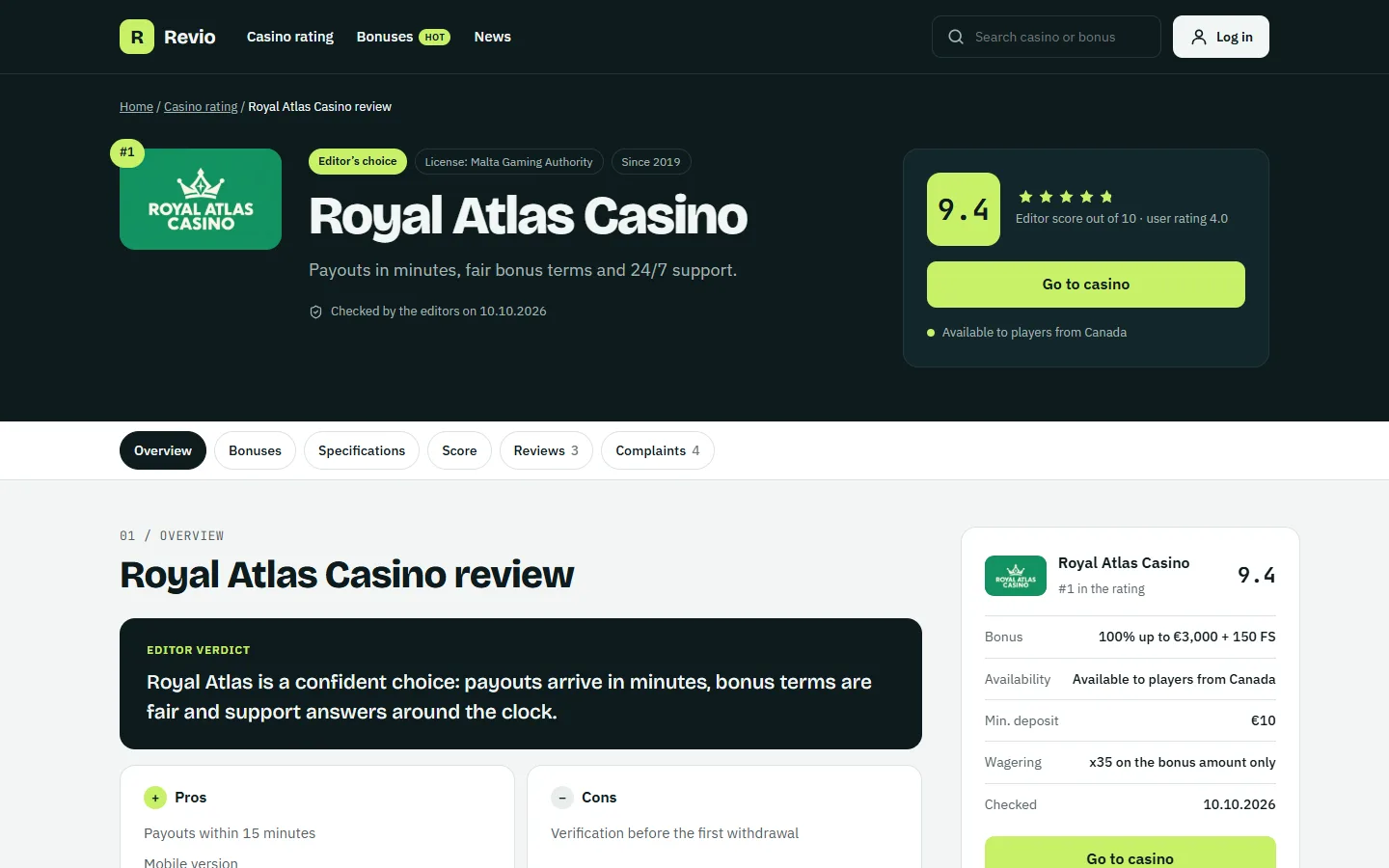
Add a casino
- Open Casinos → Add New.
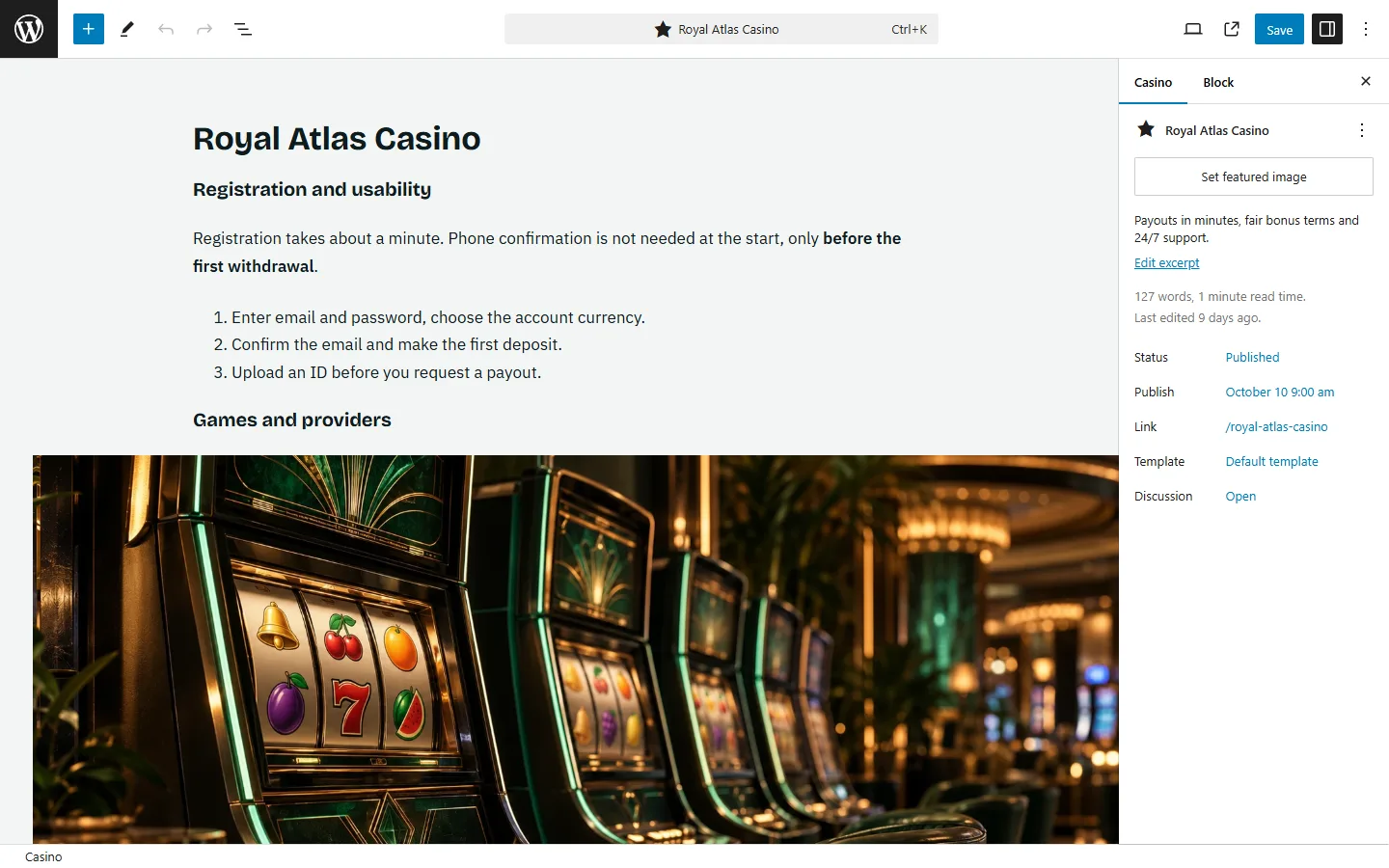
- Type the name and write the review in the editor. H2 headings become the sections of the page.
- Write a short excerpt (in the right panel). It is the line under the name in the first screen and in cards.
- Fill in the fields under the editor — they are grouped and explained below.
- Click Publish.
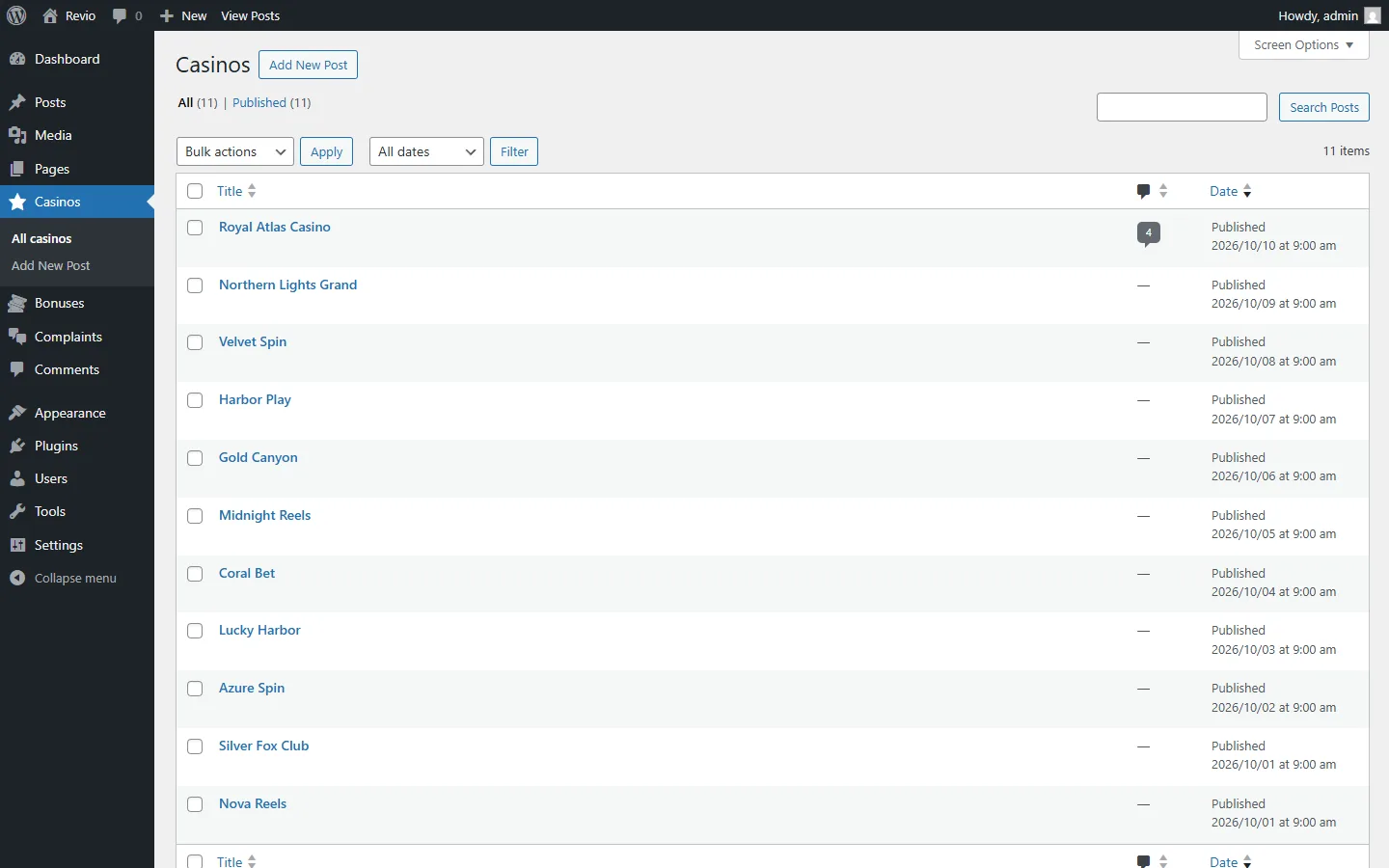
All casinos are listed in Casinos. Drafts are hidden from the site and the blocks.
Casino fields
Rating
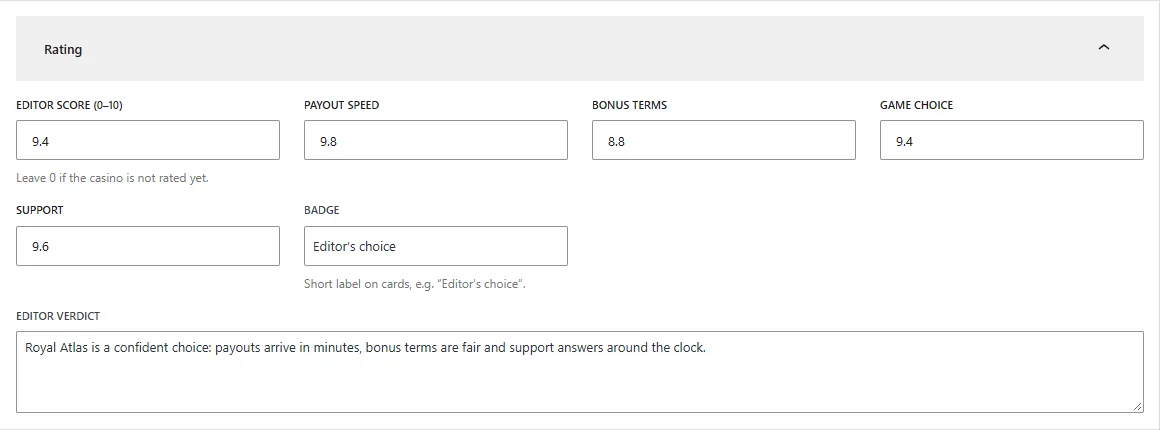
| Field | What it does |
|---|---|
| Editor score (0–10) | The main score. The rating is sorted by it. Leave 0 to keep the casino out of the rating. |
| Payout speed, Bonus terms, Game choice, Support | Sub-scores in the “Score” section of the review. All four empty: the section is hidden. |
| Badge | A short label on cards, e.g. “Editor’s choice”. |
| Editor verdict | The conclusion of the editors, shown as a quote in the review. |
Brand and link
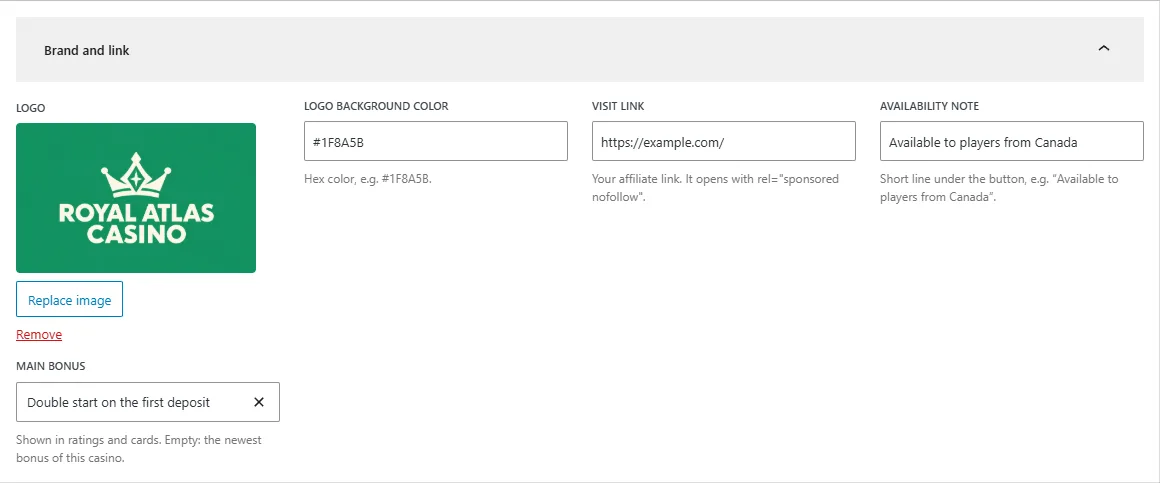
| Field | What it does |
|---|---|
| Logo | A wide logo, ideally a transparent PNG about 400 × 200 px. It sits on the background color below. |
| Logo background color | The brand color behind the logo, e.g. #1F8A5B. Without a logo the tile shows the first letters of the name. |
| Visit link | Your affiliate link. All “Visit casino” buttons use it, with rel="sponsored nofollow". |
| Availability note | A line under the button, e.g. “Available to players from Canada”. |
| Main bonus | The bonus shown in the rating and cards. Empty: the newest bonus of this casino. |
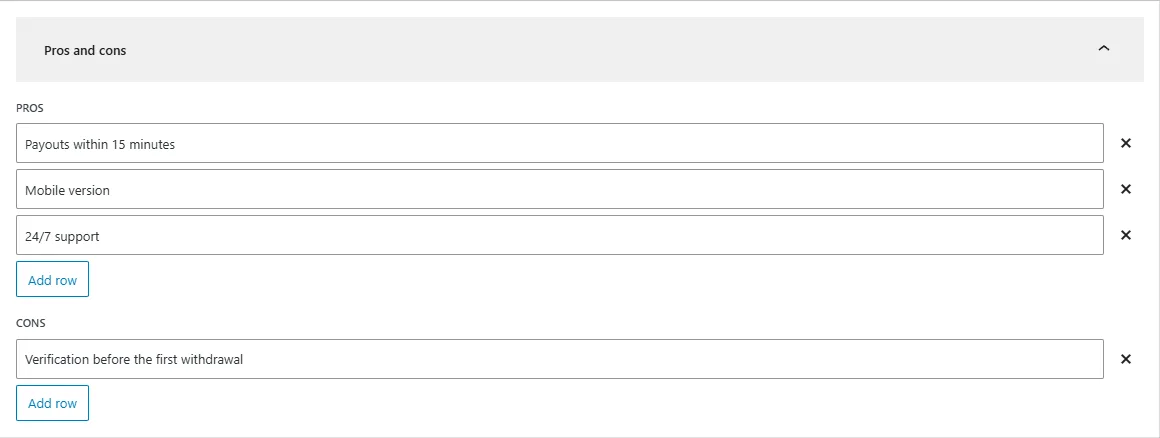
Pros and cons
Specifications
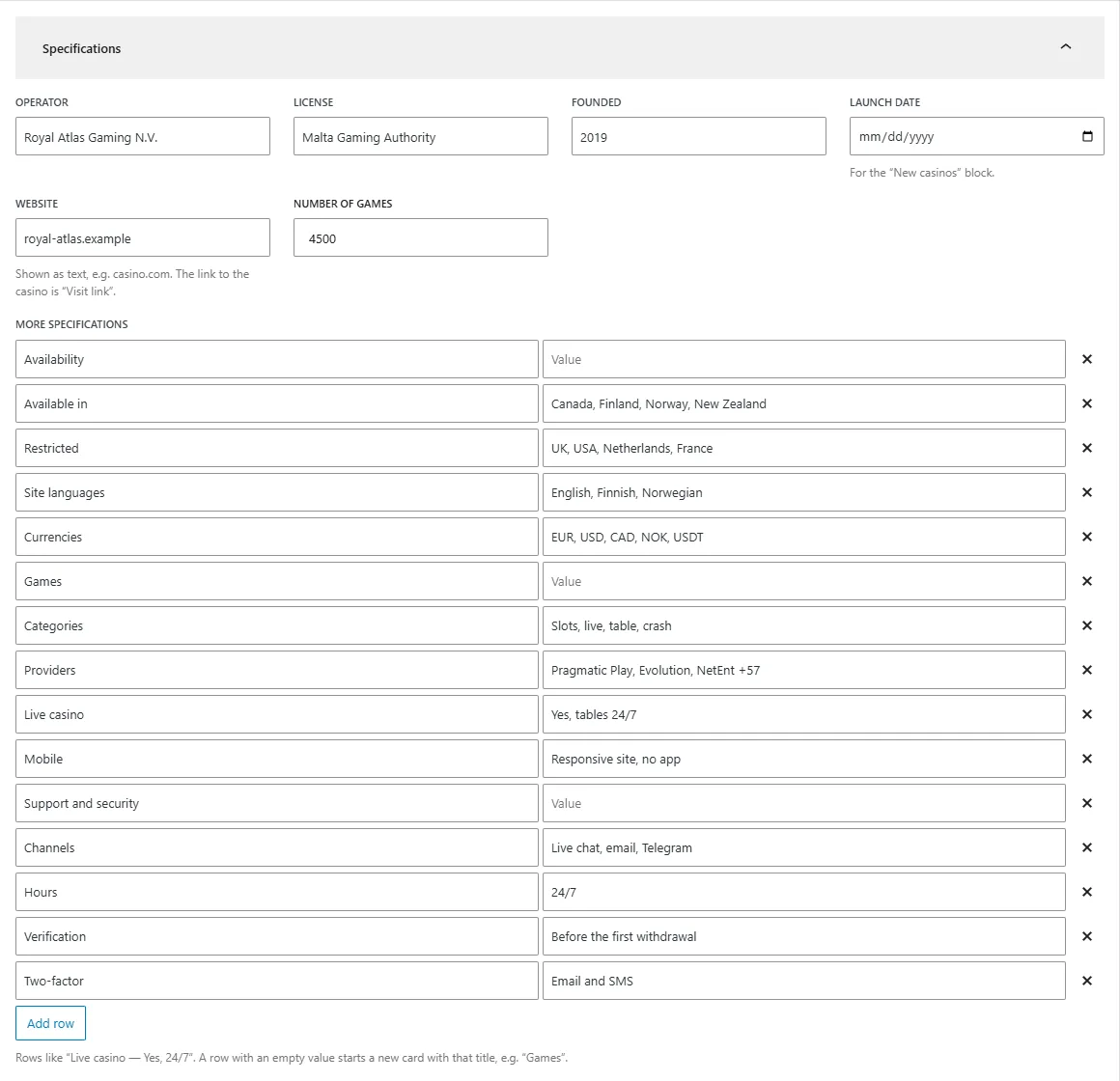
Operator, license, founded, launch date, website and number of games fill the “Specifications” section. Launch date also puts the casino into the “New casinos” block. In More specifications add any rows like “Live casino — Yes, 24/7”; a row with an empty value starts a new card with that title.
Empty fields and sections are hidden on the site. You never need placeholders like “—”.
06 / Content
Bonuses
A bonus belongs to a casino. It appears on the casino page, in bonus blocks and on its own page with the full terms.
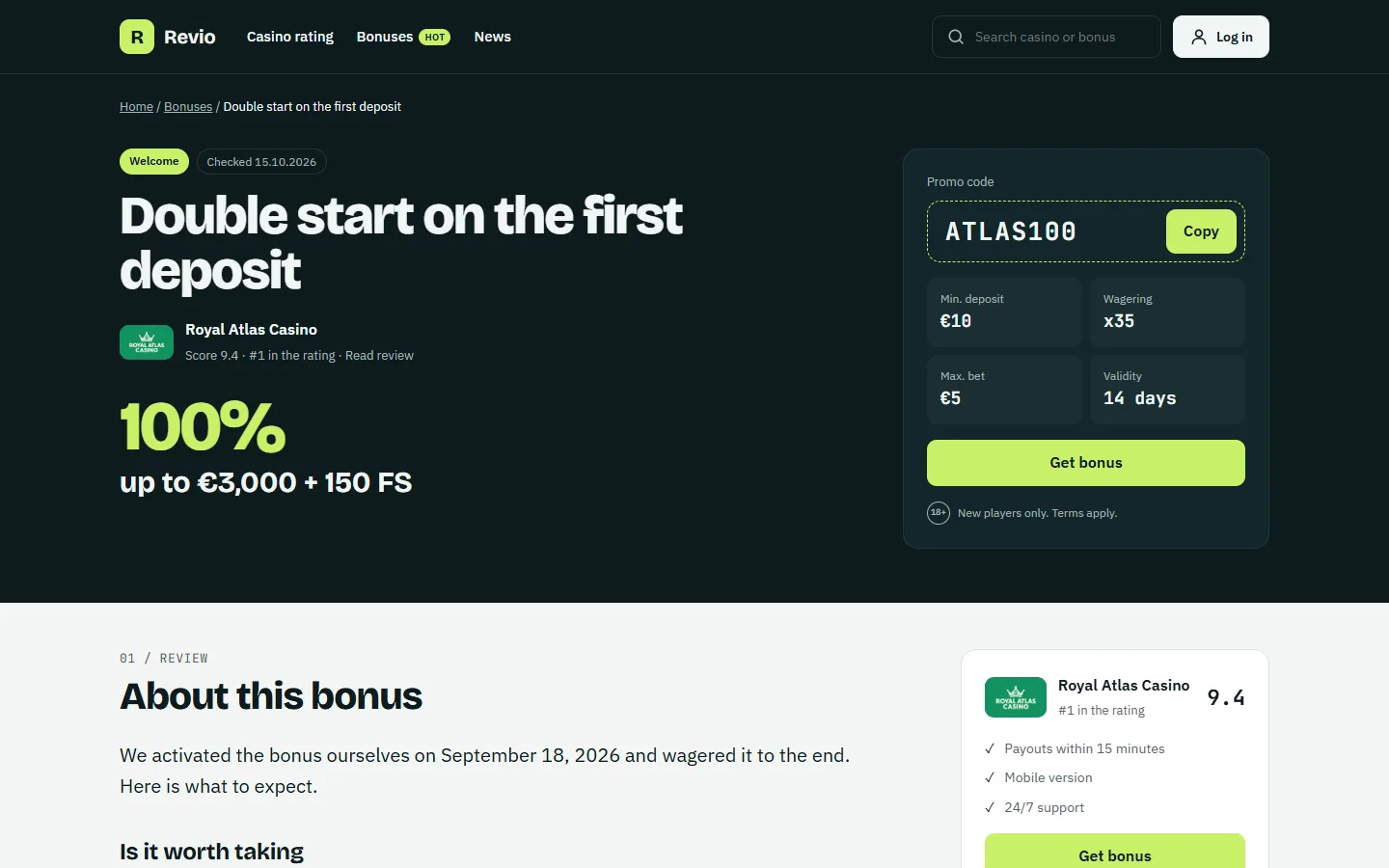
Add a bonus
- Open Bonuses → Add New and type the title, e.g. “Welcome package”.
- On the right choose the Bonus type (Welcome, No deposit, Free spins, Cashback…). Types are the filters of the rating and the bonus search.
- Fill in the fields under the editor and publish.
Bonus
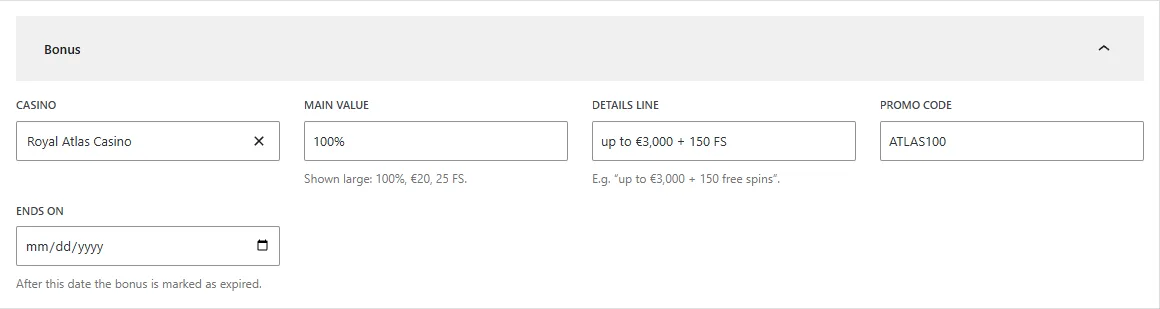
Casino links the bonus to its casino. Main value is shown large (100%, €20, 25 FS), the details line under it (“up to €3,000 + 150 free spins”). Promo code gets a copy button. After the Ends on date the bonus is marked as expired.
Terms
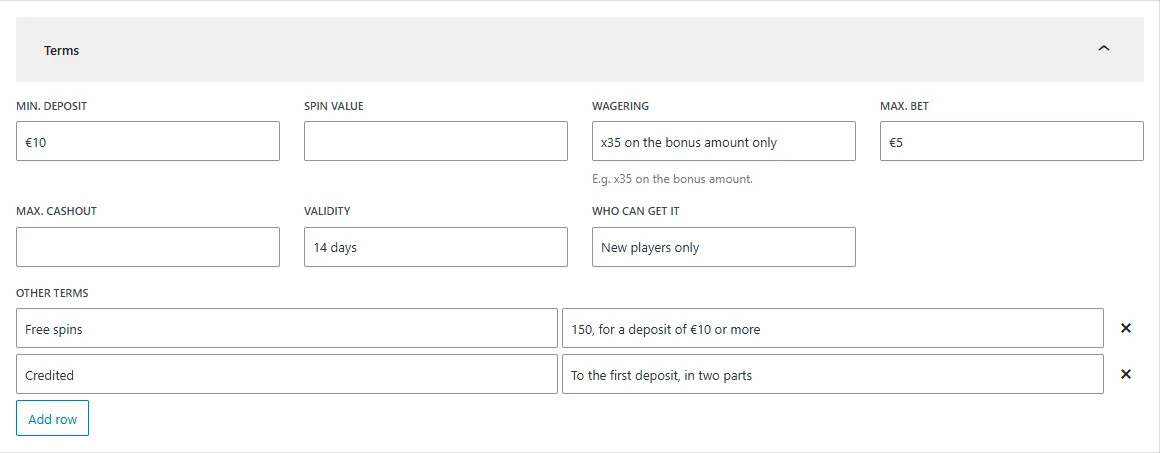
Min. deposit, spin value, wagering, max. bet, max. cashout, validity and who can get it form the terms table. Other terms adds your own rows.
Bonus page
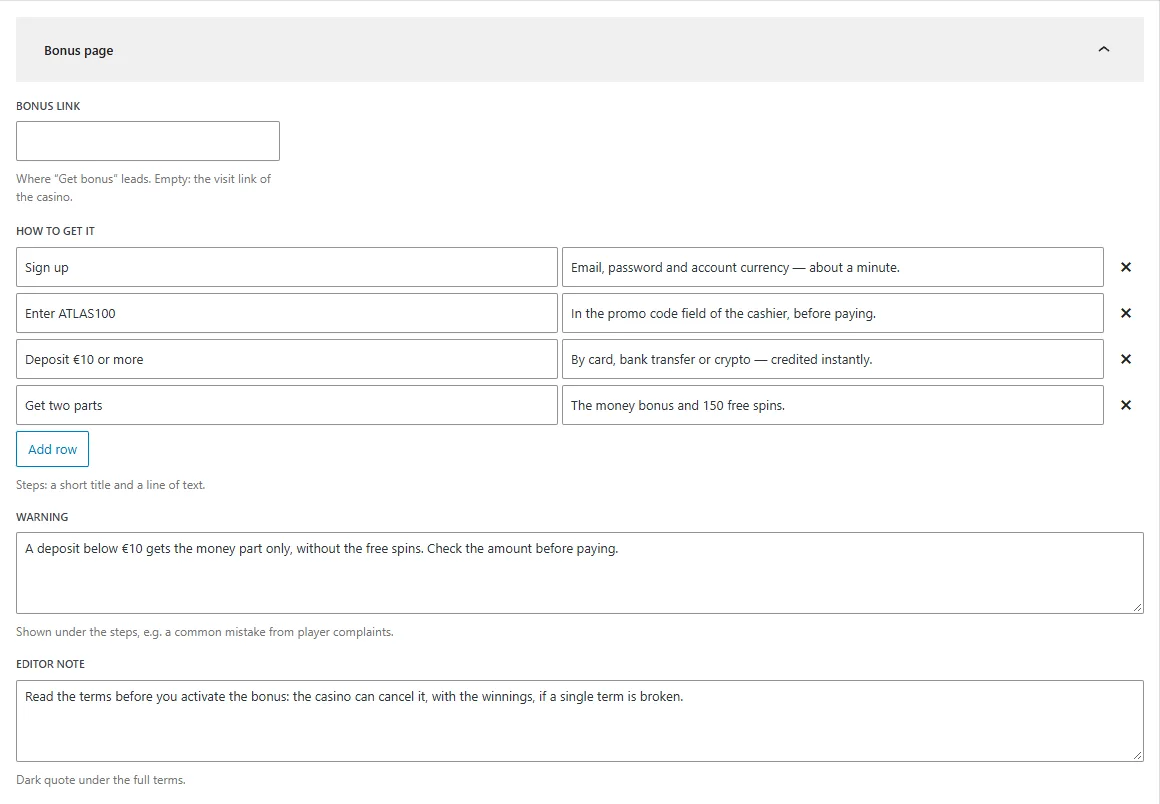
Bonus link is where “Get bonus” leads (empty: the casino visit link). How to get it becomes numbered steps, Warning a highlighted box under them, Editor note a dark quote under the terms.
07 / Community
Player reviews
Players rate a casino from 1 to 5 stars and write a title, pros, cons and the review. The average and the distribution of stars are shown at the top of the “Reviews” section.
- Reviews are WordPress comments of the casino, so you moderate them in Comments.
- Reviews of guests always wait for your approval.
- To answer as the editors, reply to the review in Comments; the answer is shown under it as the “Editorial answer”.
- Turn reviews off for one casino with Discussion → Allow comments in the right panel of the editor.
08 / Community
Complaints
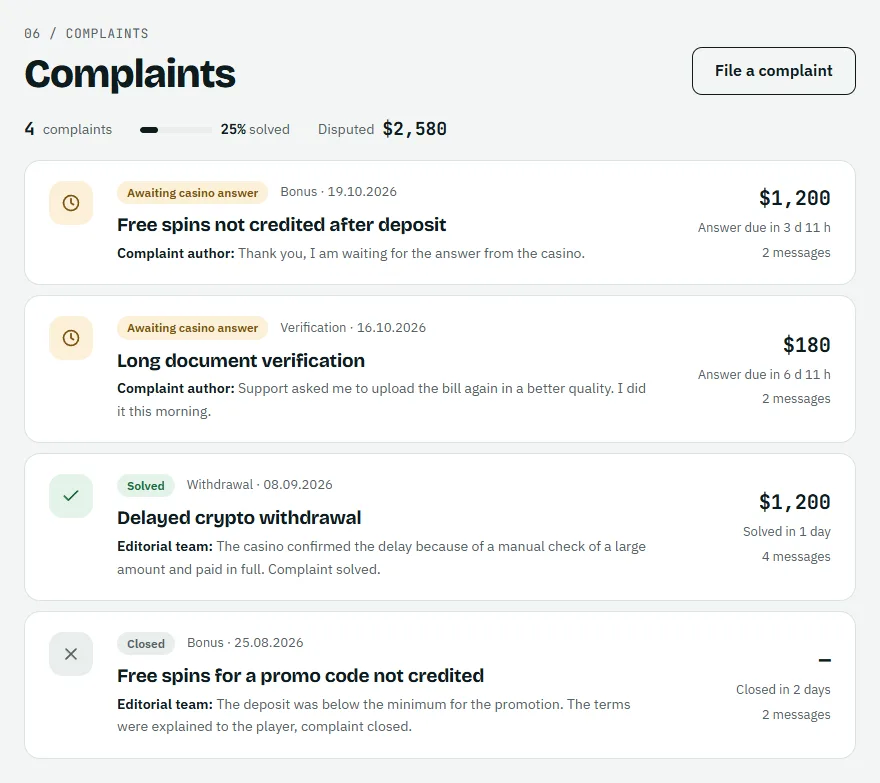
Players file complaints about casinos, the editors check them, and the player, the casino and the editors talk in one thread until the complaint is solved or closed.
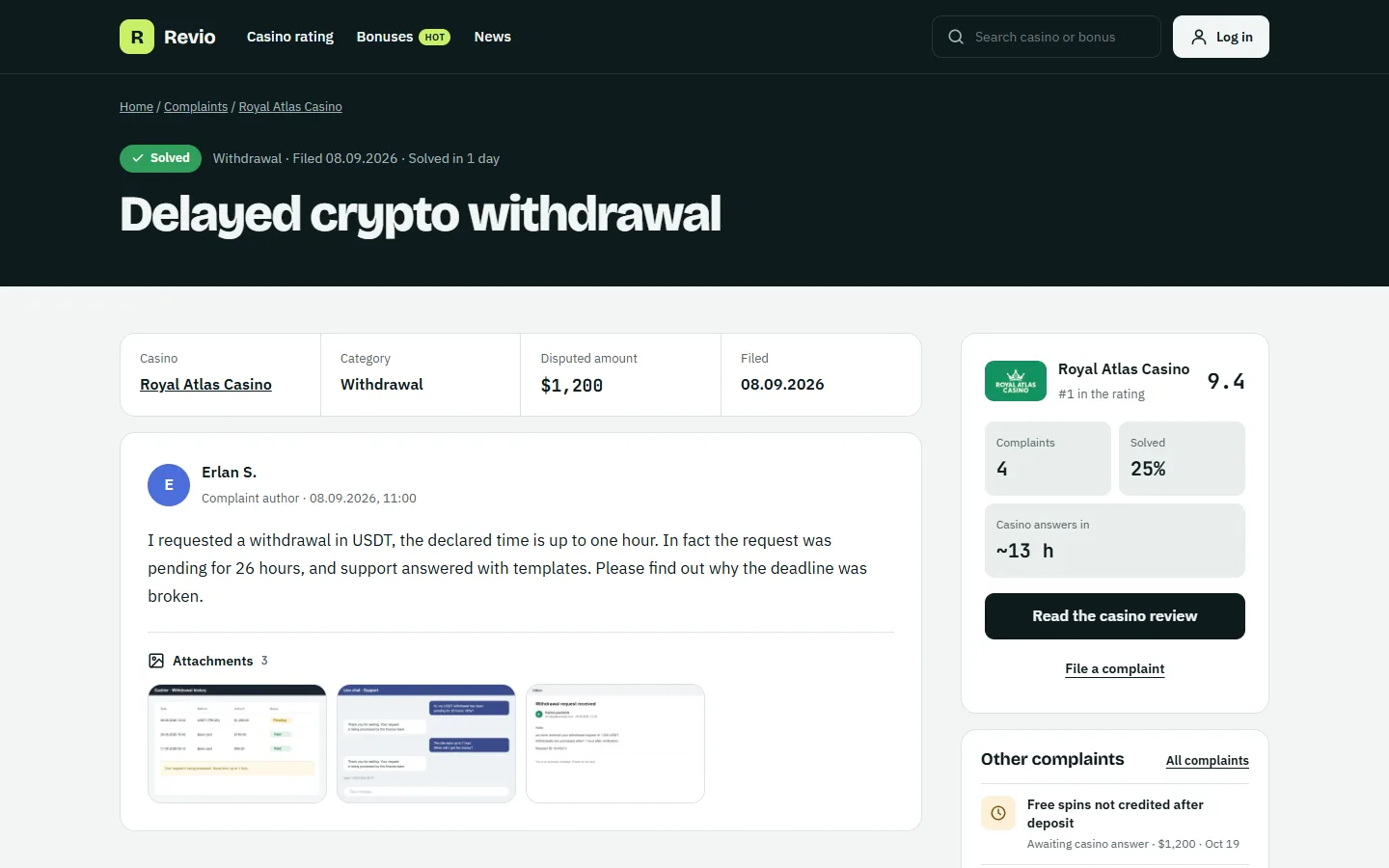
How a complaint moves
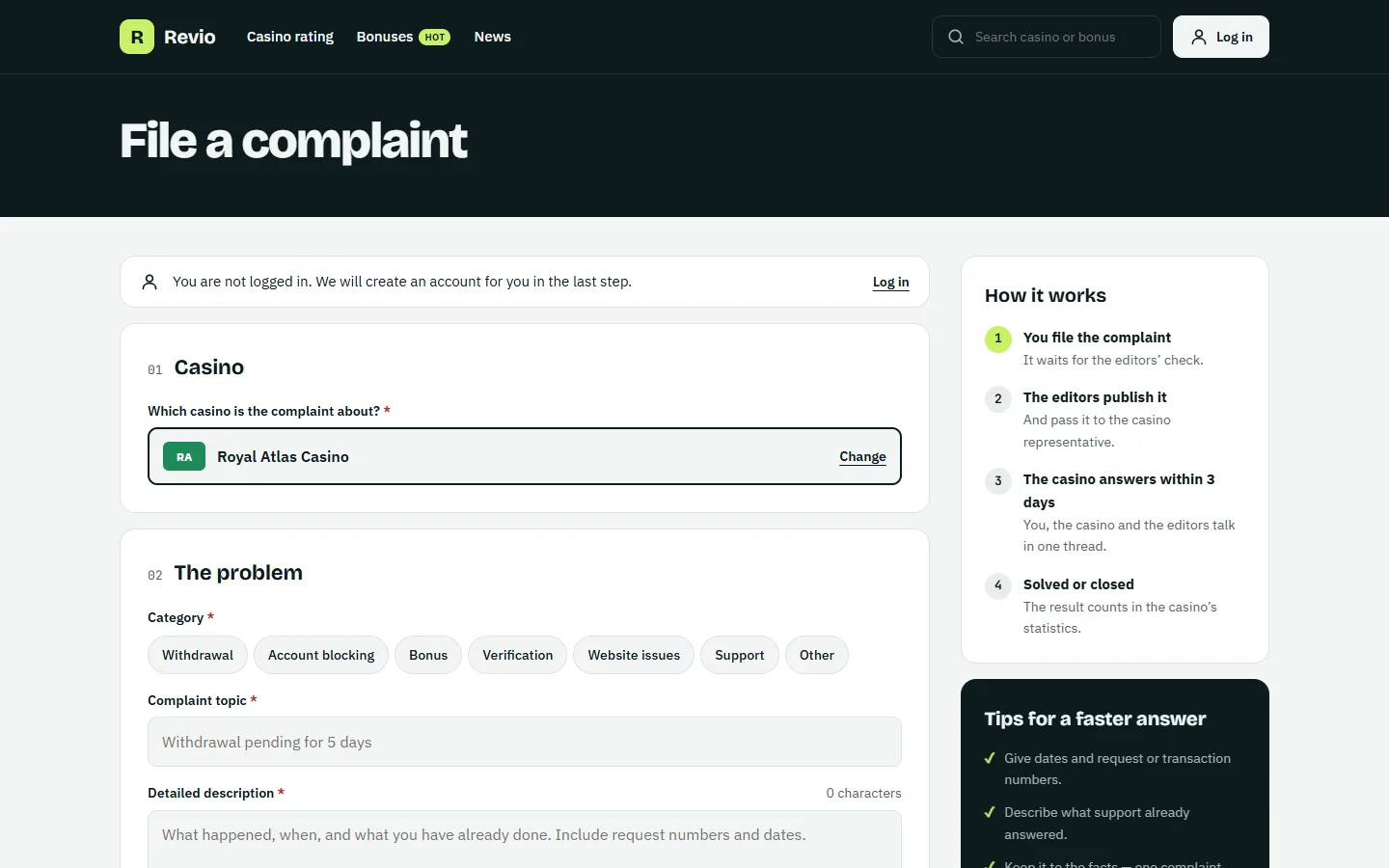
- A player files it with the form on the “File a complaint” page. A guest creates an account in the same form; the complaint waits until the email is confirmed.
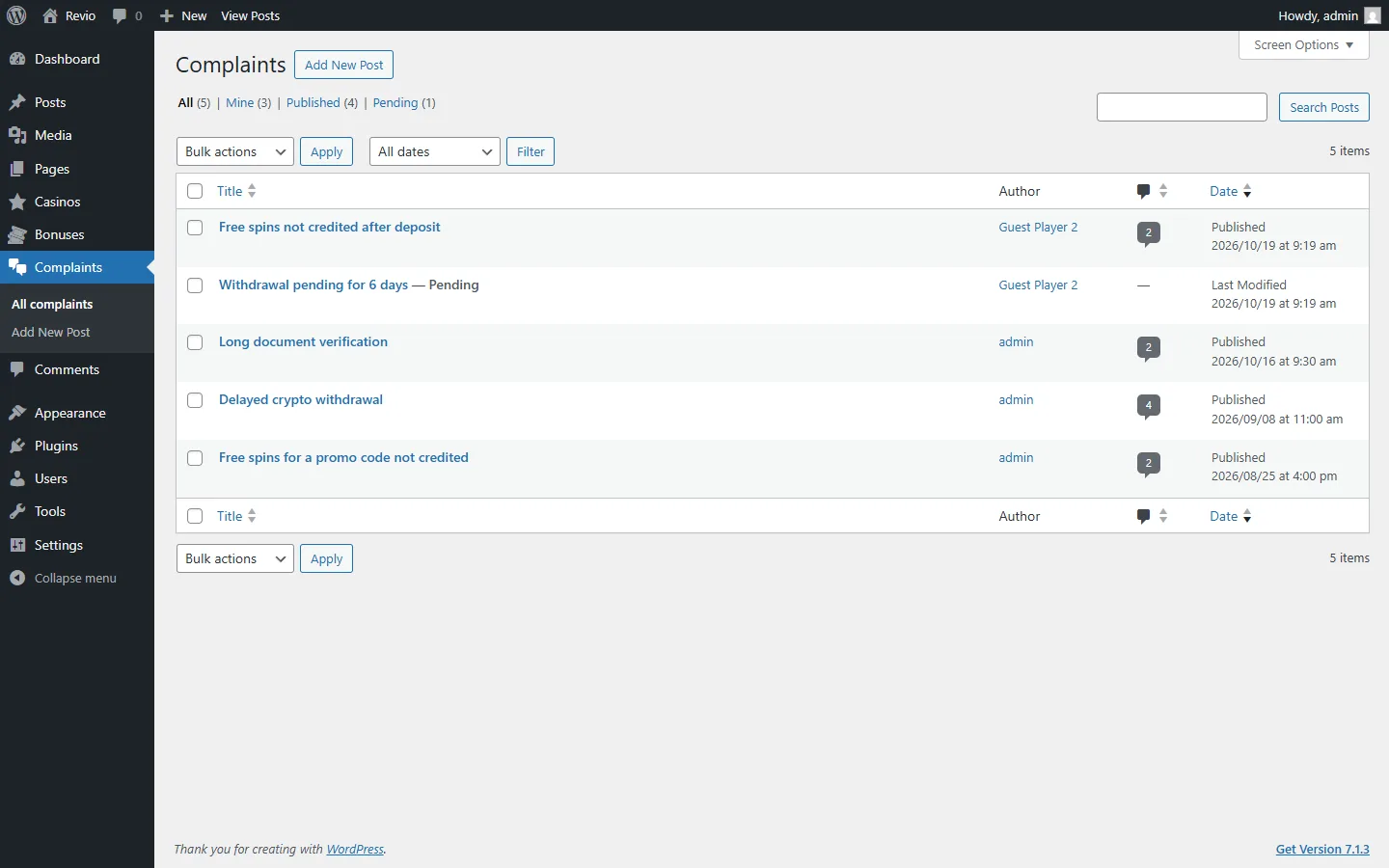
- It waits for review. You get an email and see it in Complaints with the status “Pending”. Nothing is public yet.
- You publish it. The status becomes “Awaiting casino answer” and the answer deadline is set (3 days by default). The player and the casino representatives get an email.
- The discussion. The player, the casino representative and the editors write under the complaint. Each side gets an email about new messages.
- You close it: set the status to “Solved” or “Closed” and the date in “Solved or closed on”. The player gets an email, the result counts in the statistics of the casino.
Manage complaints
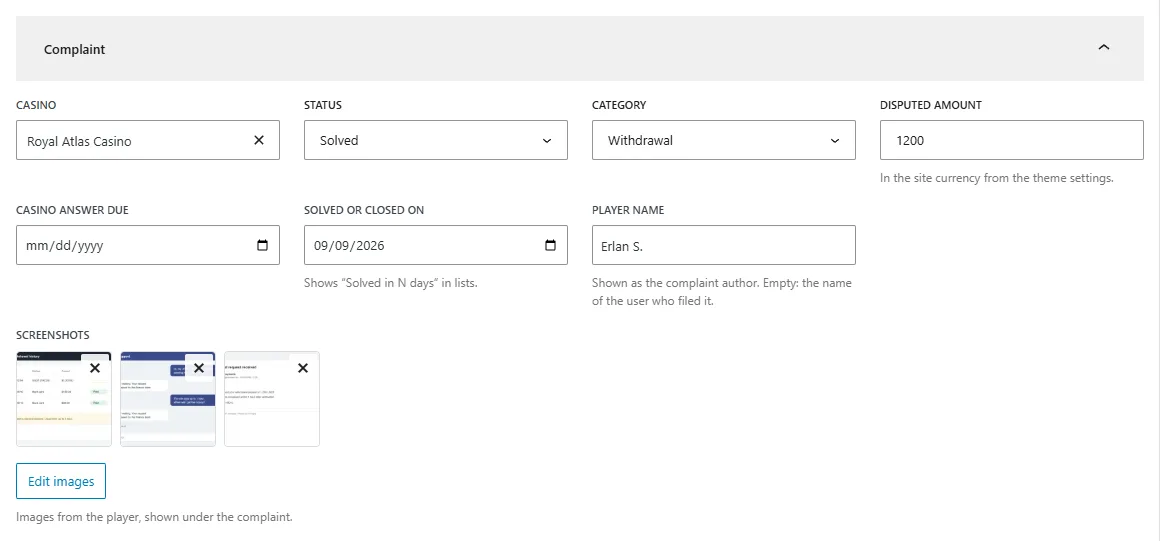
| Field | What it does |
|---|---|
| Casino | The casino of the complaint. Its representatives can answer. |
| Status | Under review, Awaiting casino answer, Solved or Closed. Colors the status everywhere on the site. |
| Category | Withdrawal, account blocking, bonus, verification, website issues, support or other. |
| Disputed amount | A number in the site currency (Customizer → Revio design). |
| Casino answer due | The deadline. The page counts down “Answer due in 2 d 5 h” and then shows “Answer overdue”. |
| Solved or closed on | Shows “Solved in N days”. |
| Player name | Shown as the author. Empty: the nickname of the account that filed it. |
| Screenshots | Images from the player. They open in a gallery on the complaint page. |
You can fix the text of a complaint before publishing: remove card numbers, personal data or insults. The player sees the published version.
Casino representatives
A representative answers complaints on behalf of a casino. Their messages are marked “Casino representative” and shown in the casino color.
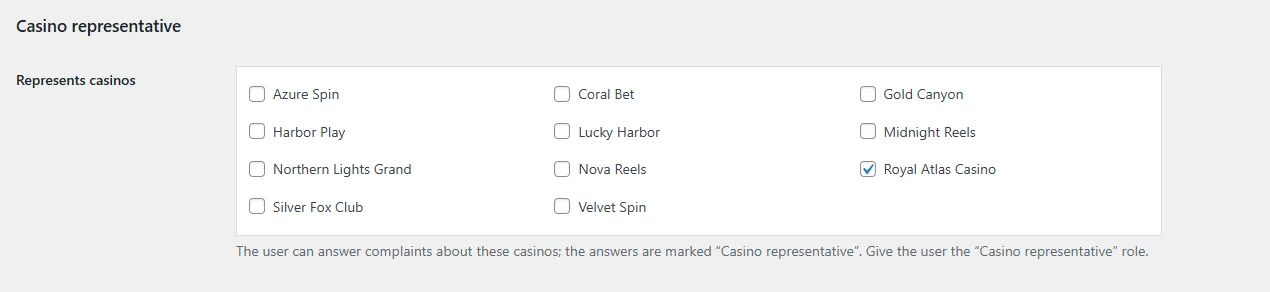
- Create a user in Users → Add New (or open an existing one) and set the role Casino representative.
- Lower on the same screen, in Represents casinos, tick the casinos this user speaks for. One user can represent several casinos.
- Save. The user gets emails about new complaints and messages for these casinos and can answer on the complaint page.

Who can write in a discussion
- the author of the complaint;
- representatives of the casino of this complaint;
- the editors: users who can moderate comments (administrators and editors).
Everybody else sees the discussion with a “Log in” button. The rule is checked on the server too, so nobody can post around it. Messages of these three sides are published at once.
Complaints on the casino page
The casino page lists its complaints with the share of solved ones and the total disputed amount. Next to every complaint page the casino card shows the number of complaints, the solved share and how fast the casino answers on average.
09 / Community
Player accounts
Players log in on your site, not in the WordPress dashboard. Accounts are ordinary WordPress users, so every security plugin keeps working.
Turn on sign-up
Open Settings → General and tick Membership: Anyone can register, with New User Default Role = Subscriber. Without it players cannot create accounts, and guests see “Log in to file a complaint” instead of the form.
Create the pages
The demo import creates them. On a fresh site:
- Create a page “Your account” and add the Log in and sign-up block.
- Create a page “My account” and add the Player account block.
- Create a page “File a complaint” and add the Complaint form block.
- Choose the three pages in Customize → Revio pages.
Without a log in page all links lead to the standard wp-login.php, styled in your colors. Password reset links from emails always open wp-login.php.
Log in and sign-up
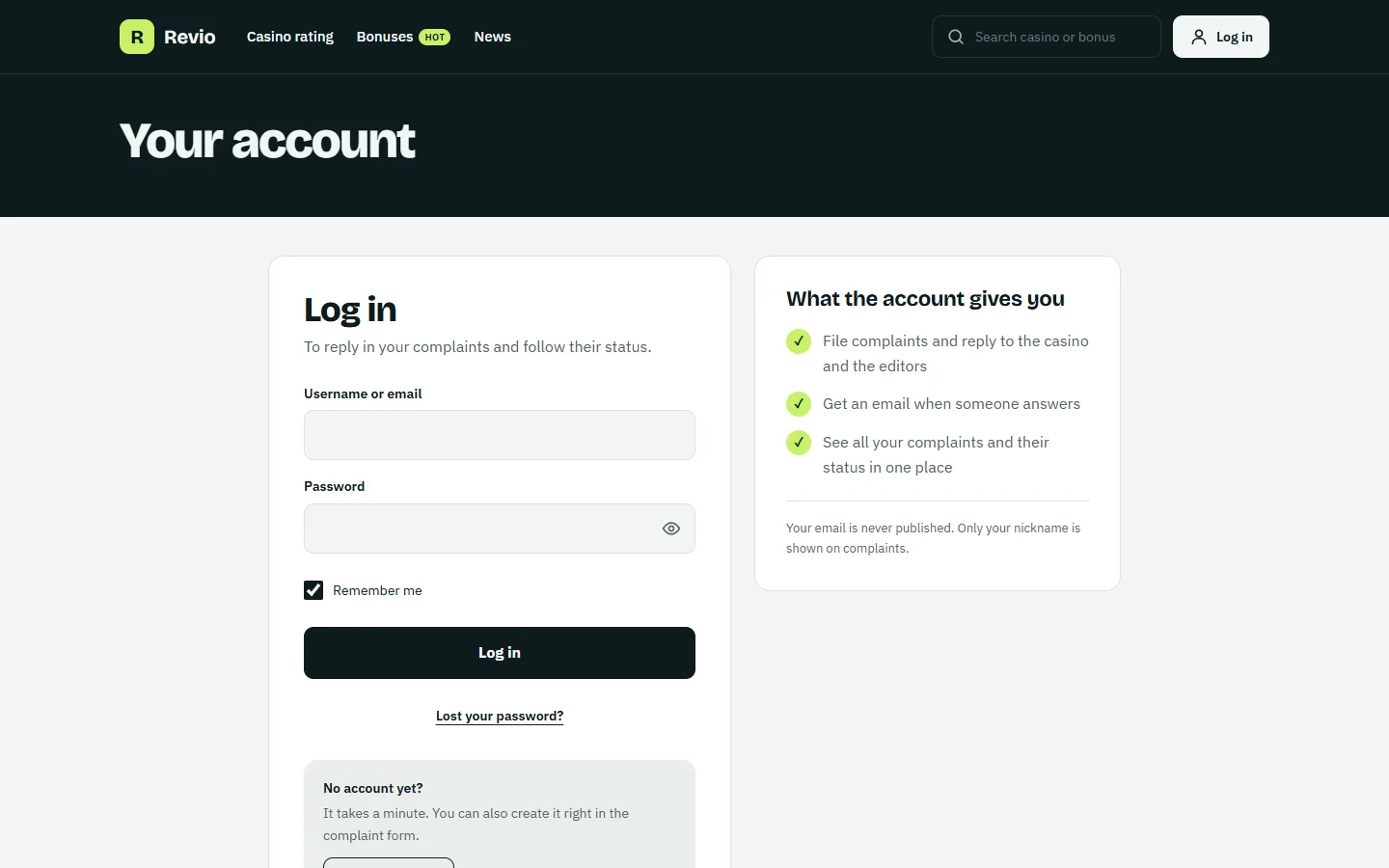
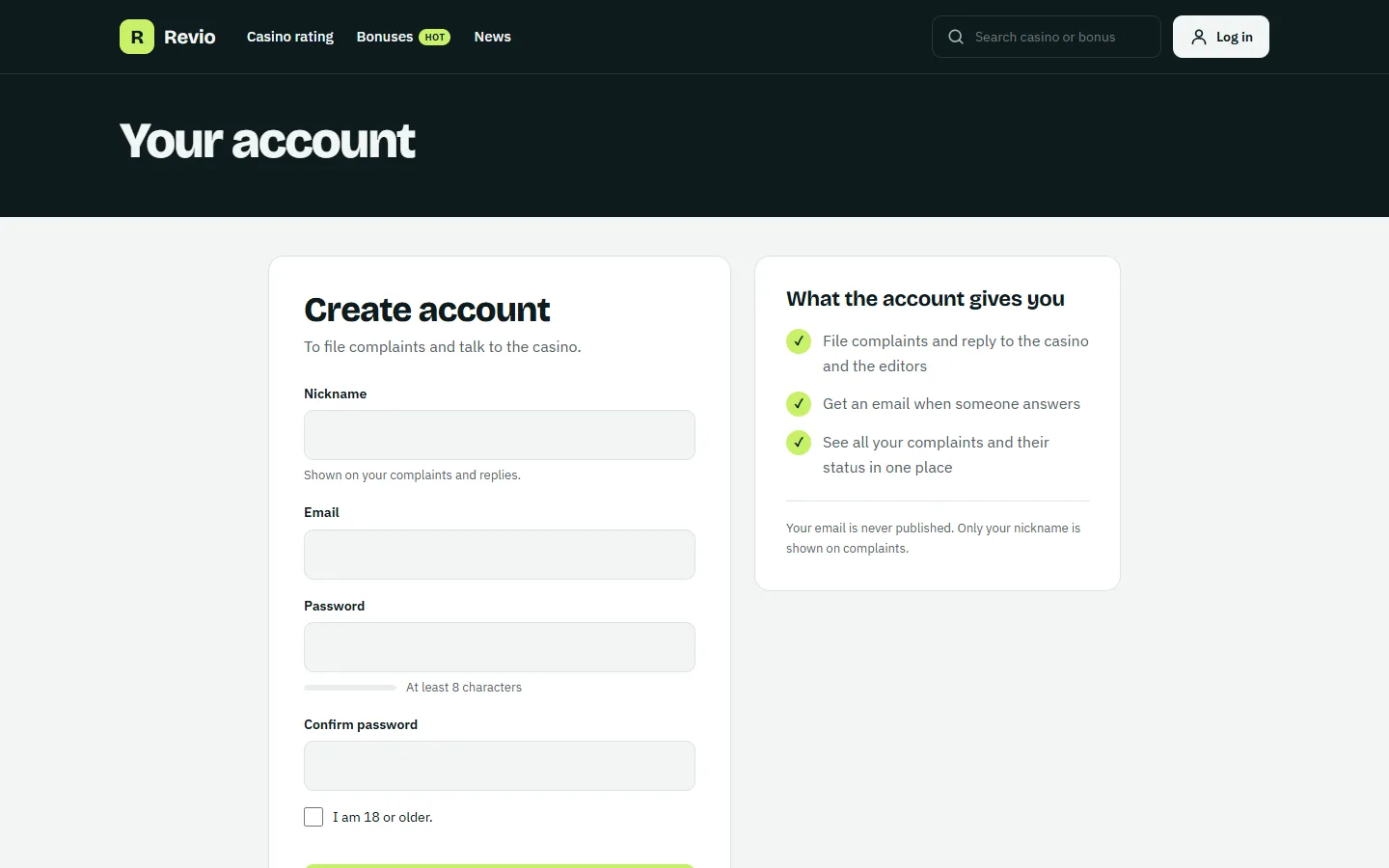
A new account asks for a nickname (any language), email, password and the consent with your privacy policy and age. The player gets an email with a confirmation link and cannot log in before opening it. Lost password uses the standard WordPress email.
The player account
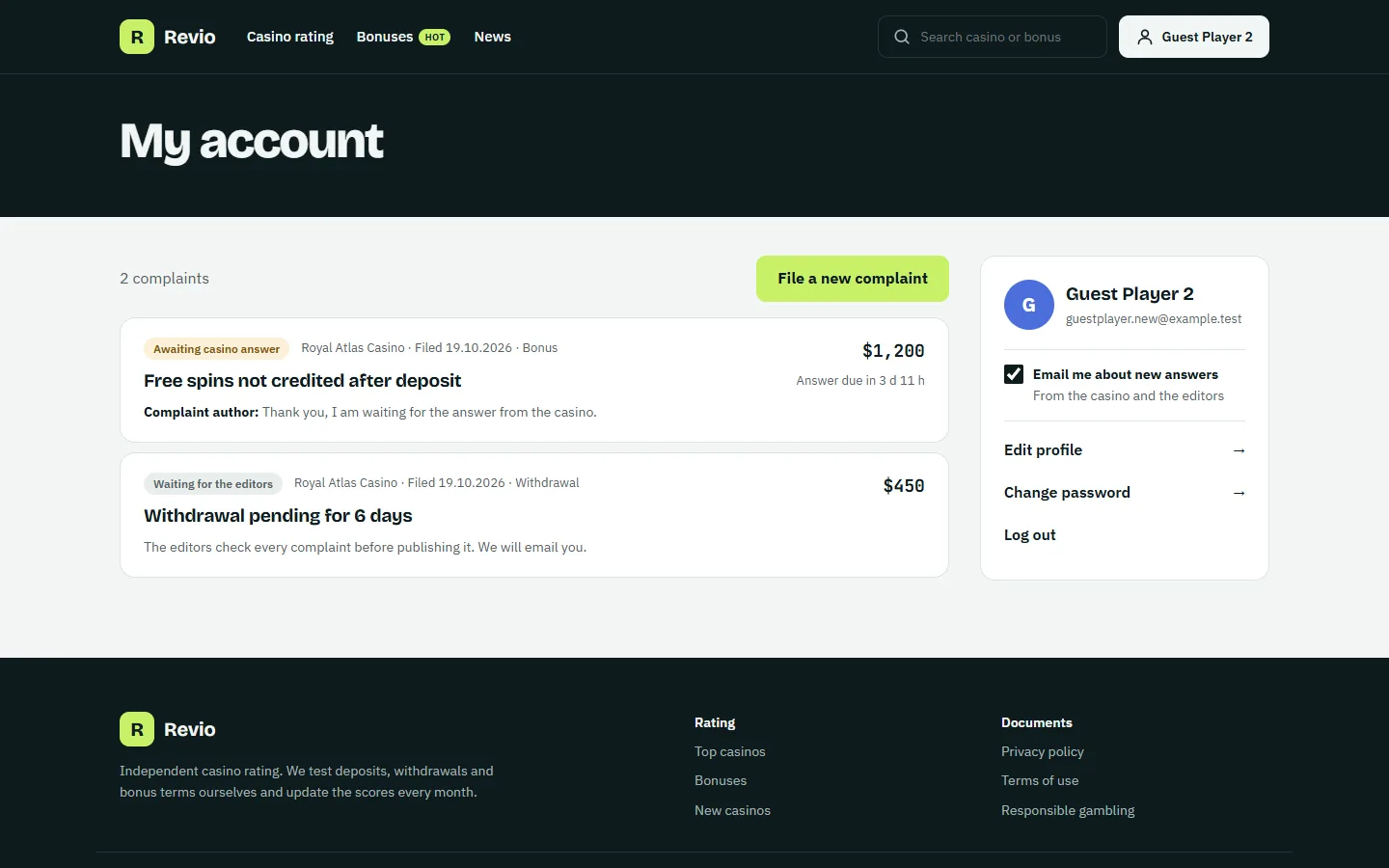
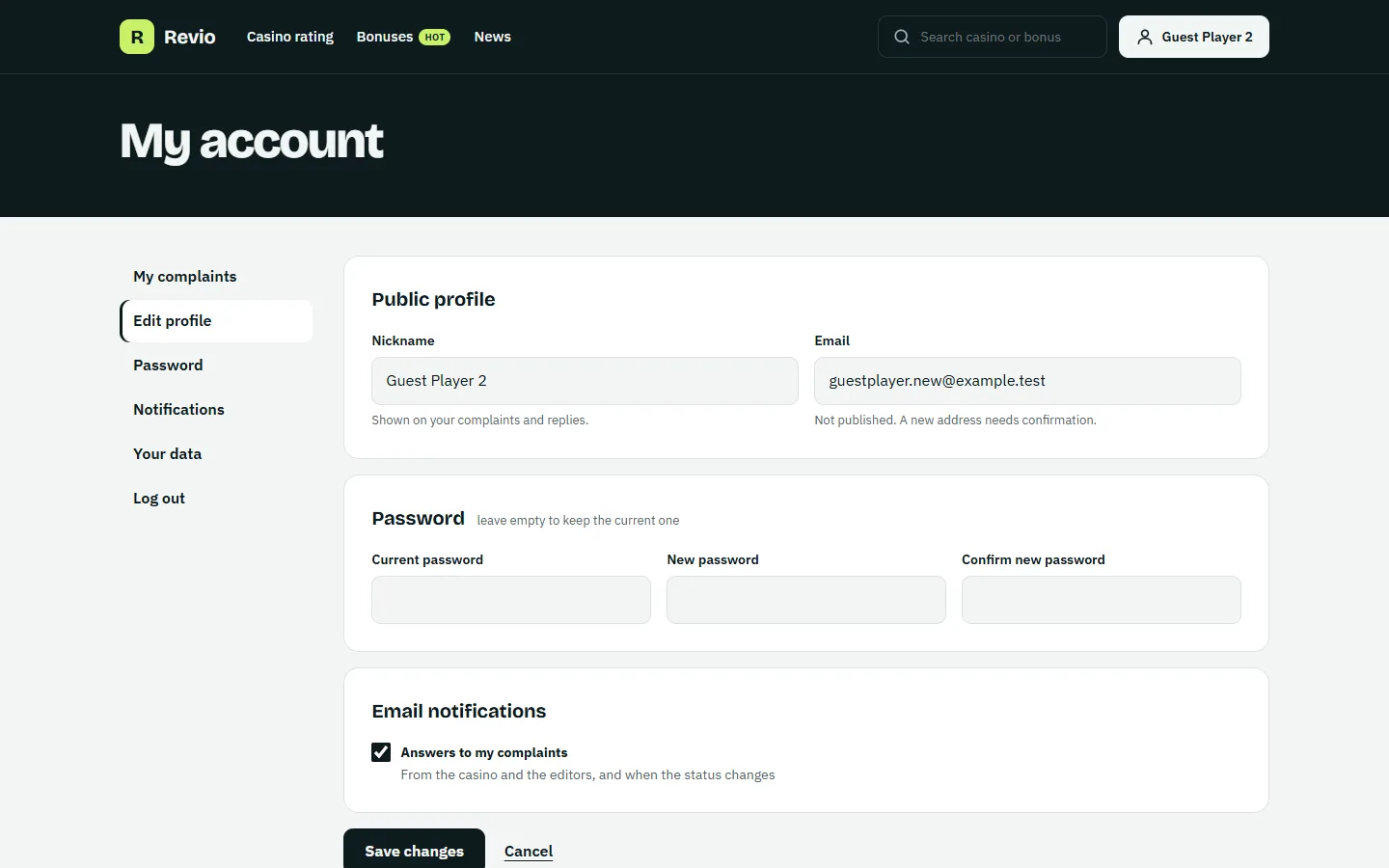
The player sees all complaints, including those still waiting for review, with the last answer and a “new” badge for unread messages. Edit profile changes the nickname, email (with confirmation of the new address), password and email notifications. Your data sends a data export or account deletion request to you through the WordPress privacy tools (Tools → Export / Erase Personal Data).
When an account is deleted, its complaints stay on the site under “Deleted user”. Complaints are part of the personal data export.
10 / Pages
Site pages
These pages are made by the theme from your content. You do not build them — add casinos, bonuses and articles, and the lists fill by themselves.
All casinos
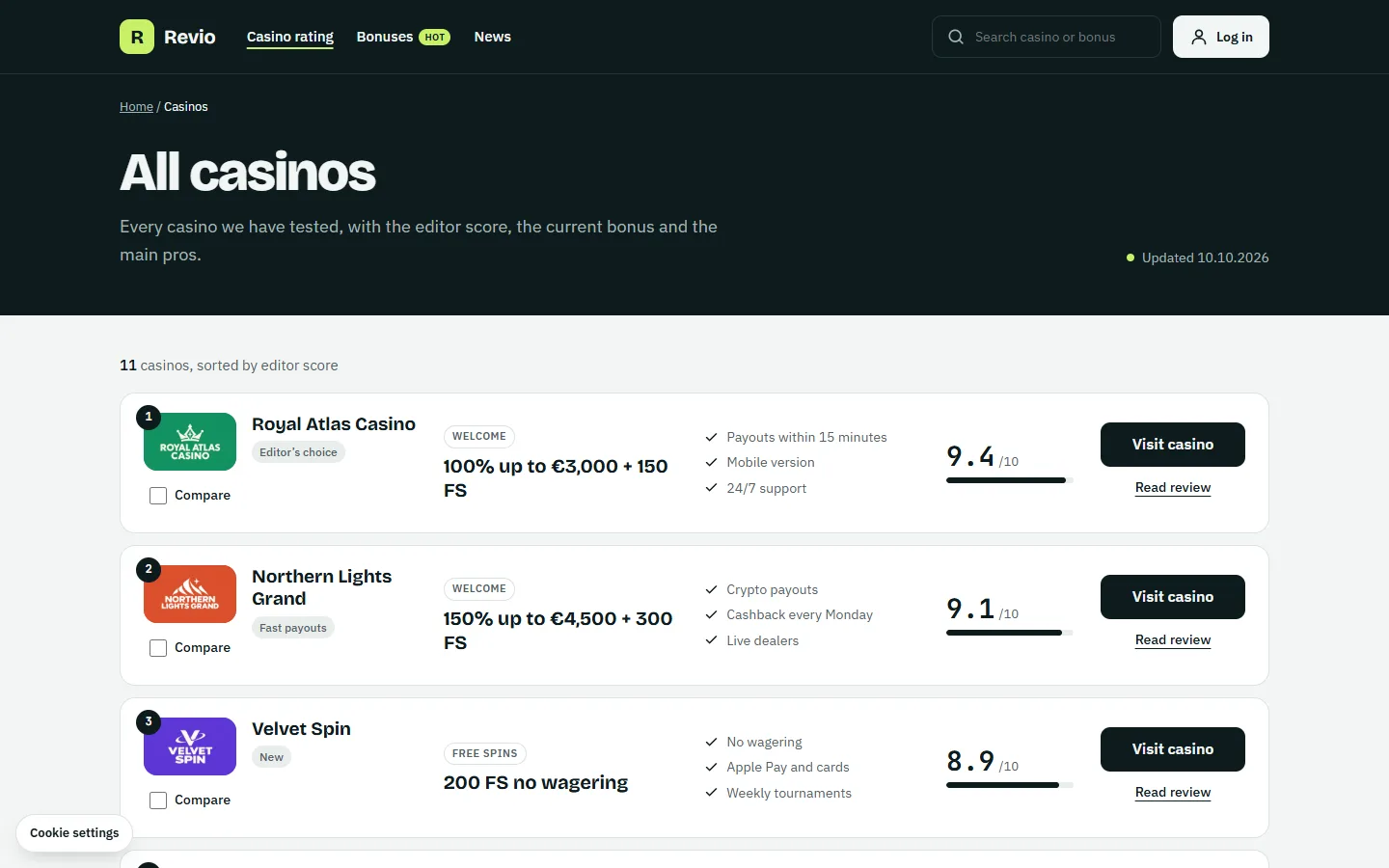
The address /casino/ lists every casino by the editor score, 10 per page, with the same cards as the rating block. Casinos without a score come last as “Not rated yet”.
Bonuses
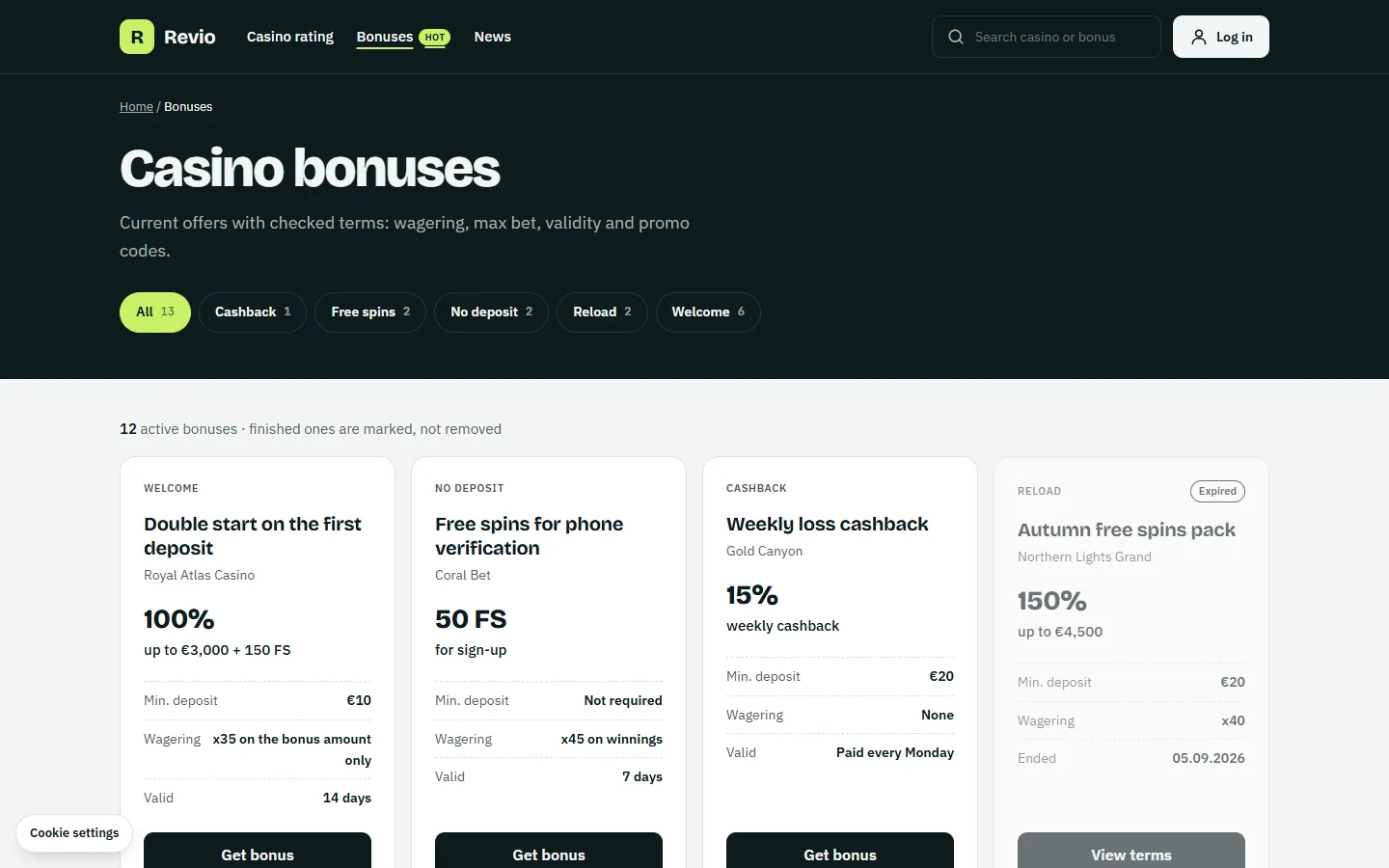
/bonus/ shows all bonuses, 12 per page, newest first; ended bonuses stay with an “Expired” mark. The chips above the list lead to one bonus type, e.g. /bonuses/free-spins/. The type description from Bonuses → Bonus types becomes the text under the heading.
Complaints
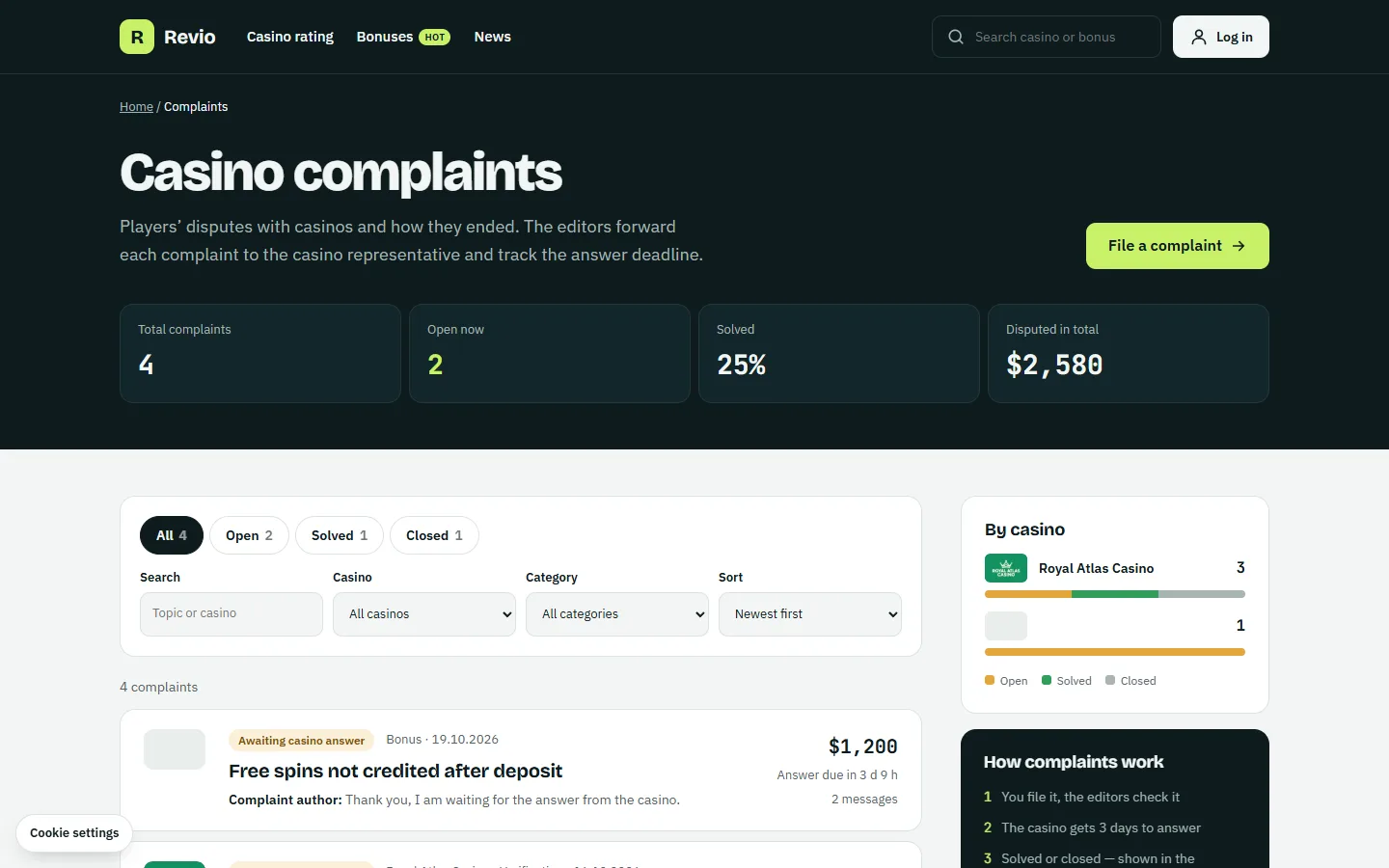
/complaint/ shows the totals, filters by status, casino, category and words, sorting by date or amount, and the complaints by casino. The filters are part of the address, so a filtered list can be shared.
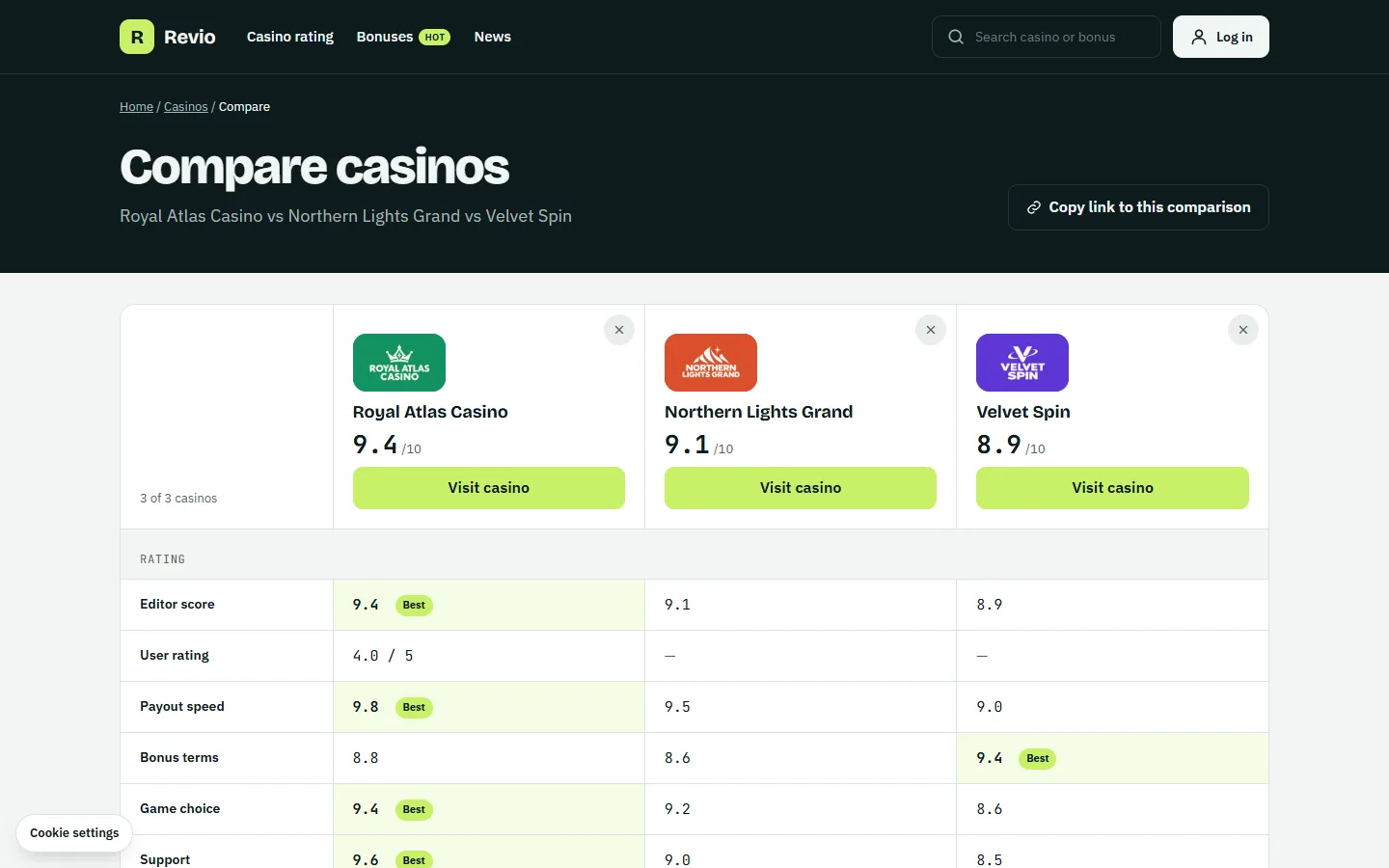
Compare casinos
Create a page with the Compare casinos block and choose it in Customize → Revio pages → Compare page. Then the rating and the casino list get “Compare” checkboxes and a bar at the bottom of the screen. Up to three casinos are compared side by side: scores, the main bonus and its terms, the specification cards of the casinos, complaints, pros and cons. The best value in a row is marked “Best”. The address /compare/?casinos=12,15 can be shared.
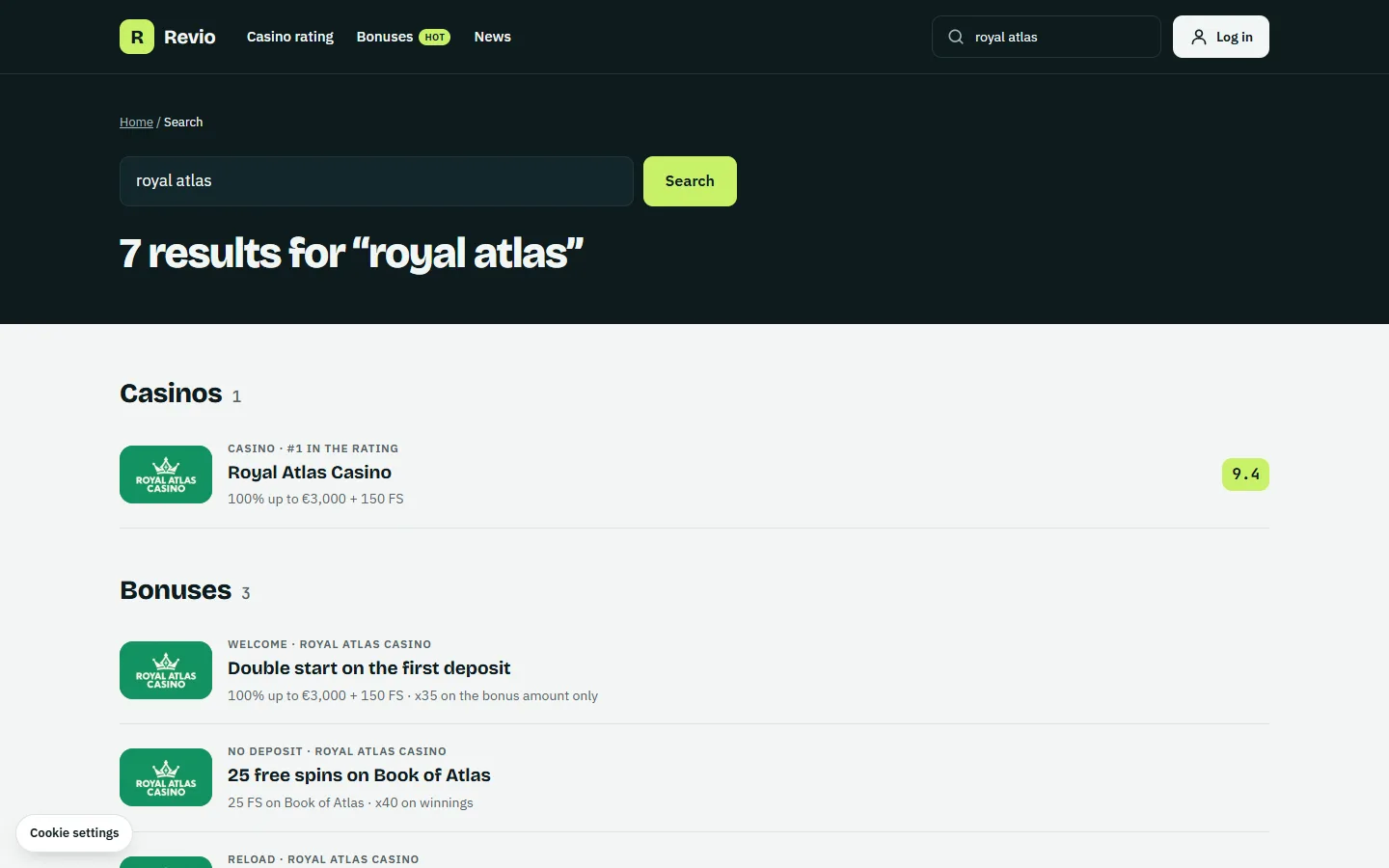
Search
The search groups the results: casinos, bonuses, complaints and articles. Bonuses and complaints are also found by the name of their casino — “royal atlas” finds the casino, its bonuses and the complaints about it.
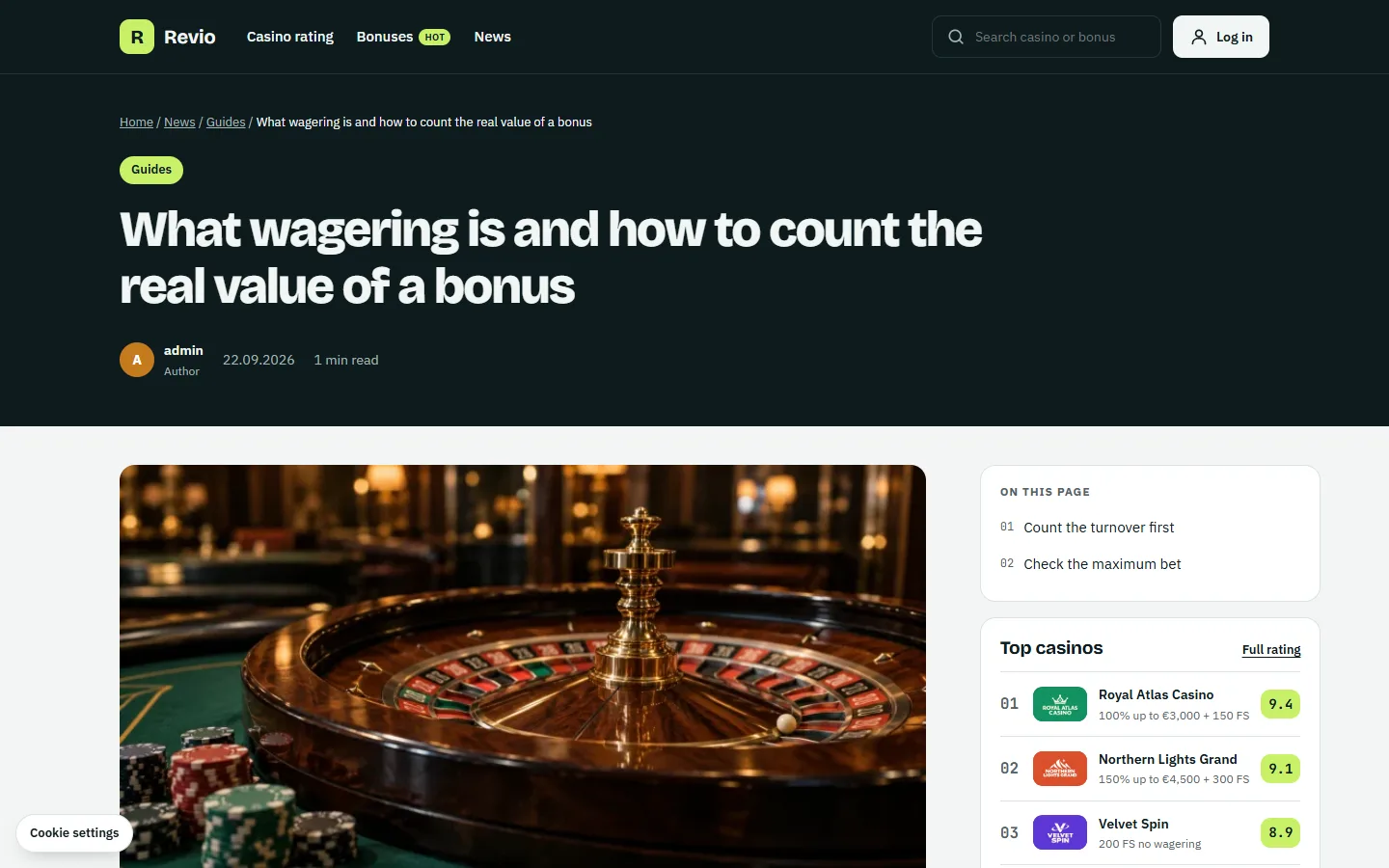
Articles and news
Posts get a first screen with the category, the author, the reading time and the date of the last update, “On this page” built from the H2 headings, sharing buttons, the author card, comments and “Read next”. The news page is the one chosen in Settings → Reading → Posts page; categories, tags and authors have the same list. Text pages such as the privacy policy also get “On this page” and the date of the last update.
Write the author bio in Users → Profile → Biographical Info: it is shown under articles and on the author page.
11 / Settings
Settings and modules
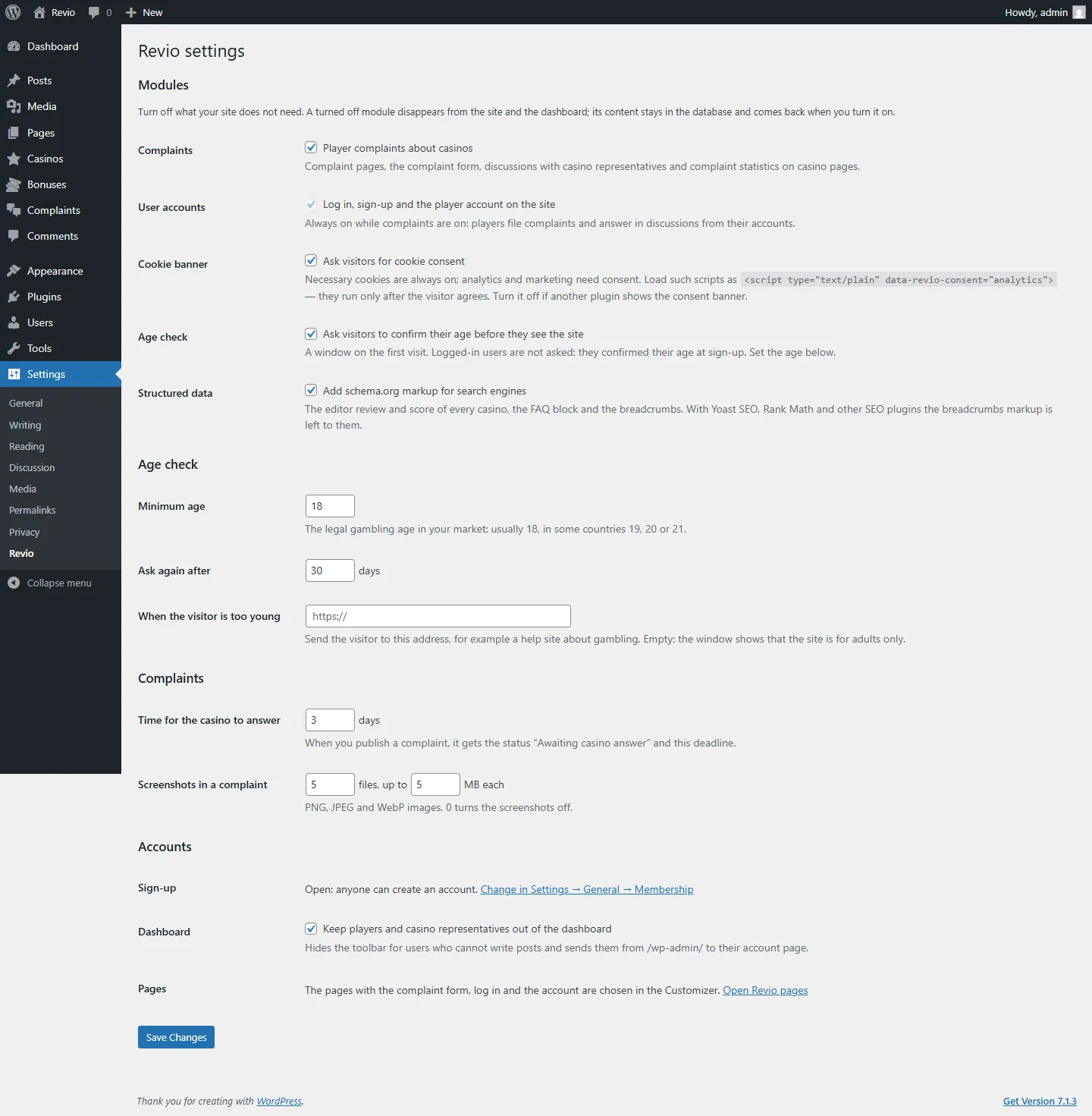
Open Settings → Revio.
Modules
Not every site needs complaints or accounts. A turned off module disappears completely:
| Module | Off means |
|---|---|
| Complaints | No complaint pages, form, menu item or statistics; the “Complaints” section of casino pages and its link are hidden. Complaints stay in the database and come back when you turn the module on. |
| Cookie banner | No consent banner — turn it off when another plugin asks for consent. |
| User accounts | No “Log in” button in the header; the log in and account blocks show nothing. Always on while complaints are on. |
Cookie banner
On the first visit a banner asks for consent: Accept all, Only necessary or Cookie settings with the Analytics and Marketing switches. The choice is kept for 180 days; the visitor can change it with the small “Cookie settings” button at the bottom of the screen. The privacy policy link leads to the page from Settings → Privacy.
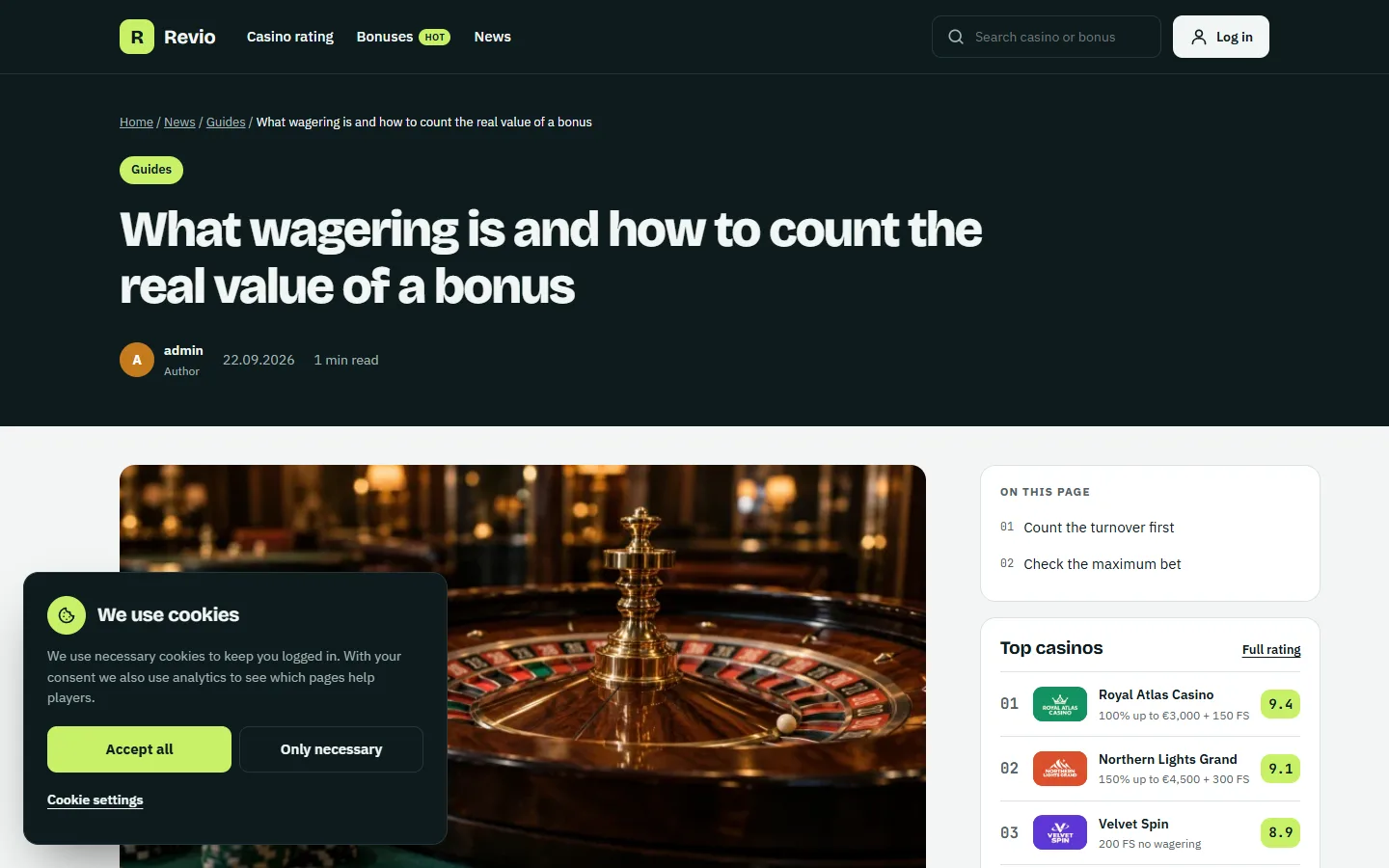
Load analytics or ad scripts so that they wait for consent — change the type and add the category:
<script type="text/plain" data-revio-consent="analytics" src="https://example.com/analytics.js"></script>The banner runs such scripts only after the visitor agrees. With the WP Consent API plugin the choice is passed to it too.
Complaints
- Time for the casino to answer — days until the deadline, set when you publish a complaint.
- Screenshots in a complaint — how many images a player can attach and the size limit of each. 0 turns the upload off.
Accounts
- Sign-up — shows whether registration is open, with a link to change it.
- Keep players and casino representatives out of the dashboard — users who cannot write posts do not see the admin toolbar and are sent from
/wp-admin/to their account page.
12 / Settings
Emails
| Event | Who gets it |
|---|---|
| New account | The player (confirmation link), the site admin. |
| New complaint waits for review | Editors, and the author (“We received your complaint”). |
| Complaint published | The author (with the deadline), the casino representatives. |
| New message in a complaint | The other sides: the author, the representatives, the editors. |
| Status “Solved” or “Closed” | The author. |
| Casino missed the deadline | Editors, once a day, as one list. |
Every email uses one layout in your accent color, with a plain text version for email programs that do not show HTML.
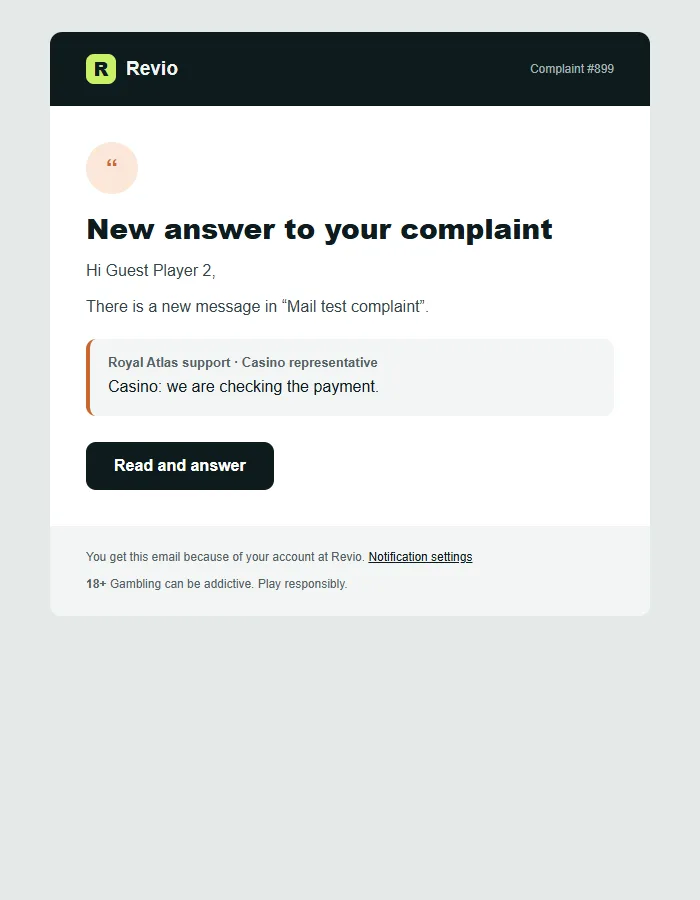
- Editors are the site admin email from Settings → General. Developers can add more addresses, see For developers.
- Players and representatives can turn off complaint emails in their account. Confirmation emails are always sent.
- The demo import sends no emails.
Many hosts send WordPress emails badly or not at all, and they land in spam. Install an SMTP plugin (for example WP Mail SMTP or FluentSMTP) and connect a mail service. Then set up SPF and DKIM records for your domain as the mail service explains.
13 / Editor
Blocks and patterns
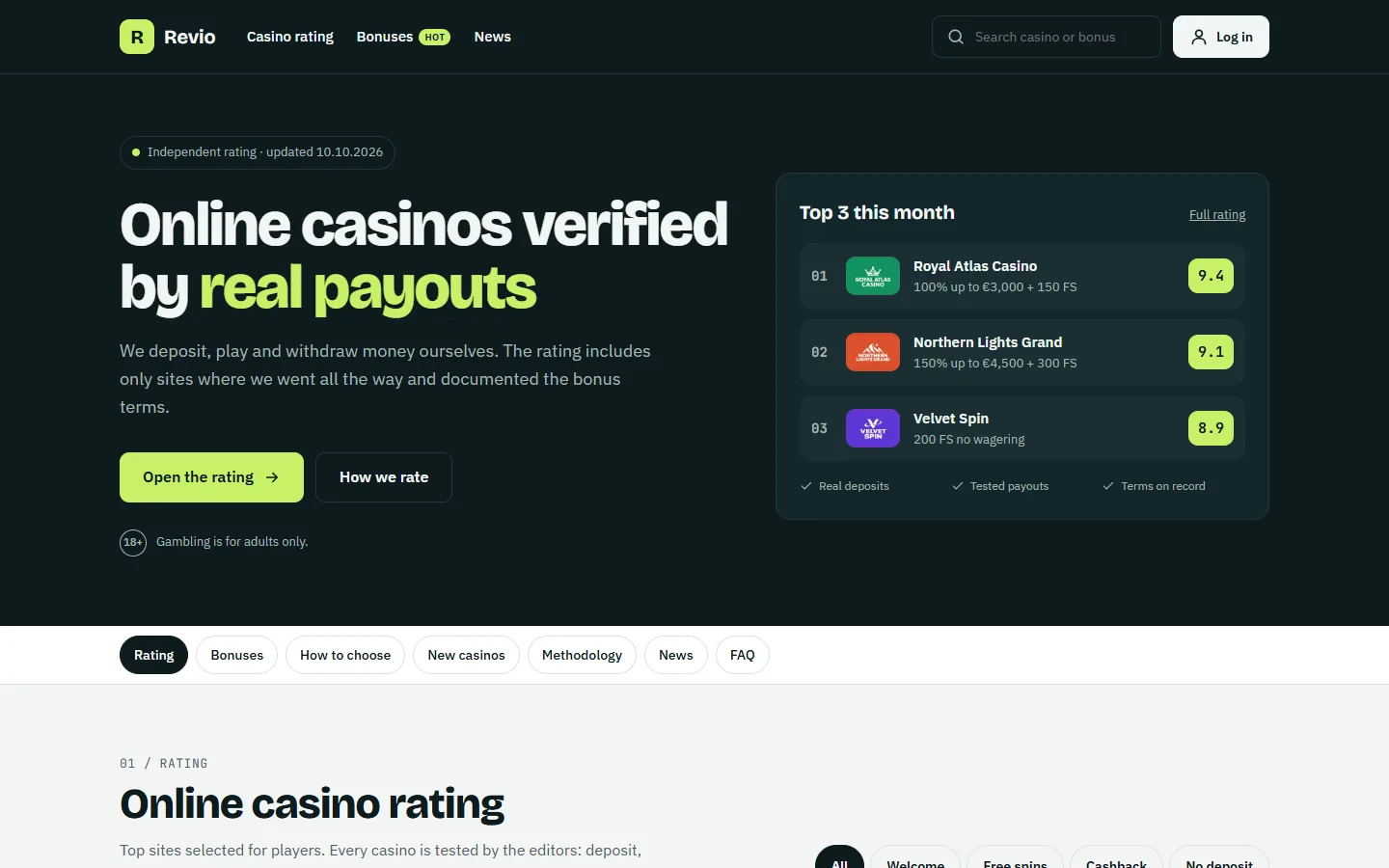
All home pages of the demos are built from Revio blocks, so you can rebuild or change them in the block editor without code. Find them in the inserter under Revio.
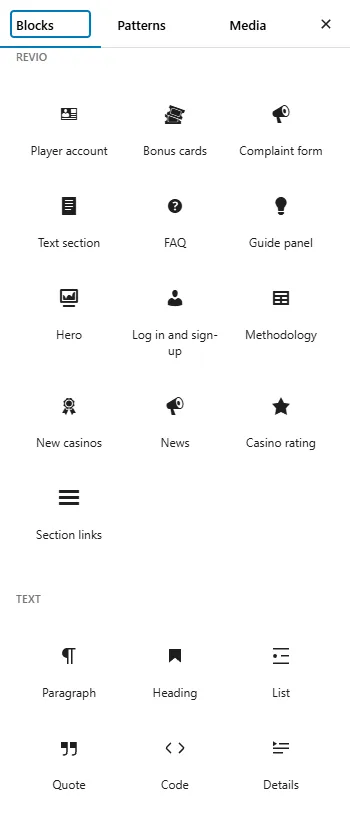
| Block | What it shows |
|---|---|
| Hero | First screen: headline, buttons and the top casinos of the rating. |
| Section links | A row of links to the sections of the page; the current one is highlighted while scrolling. |
| Casino rating | Ranked casinos with scores, main bonuses and bonus type filters. |
| Bonus cards | The latest bonuses with their main terms; expired ones are marked. |
| New casinos | Recently launched casinos by the “Launch date” field. |
| Guide panel | A bright panel with a short guide, numbered steps and a button. |
| Methodology | How the rating is made: criteria and an “Editor pick” casino card. |
| News | Latest articles as a grid or a carousel. |
| Text section | Any text with a table of contents from its H2 headings, optionally collapsed until “Read more”. |
| FAQ | Questions that open on click, with FAQPage structured data. |
| Log in and sign-up | Log in, sign-up and lost password forms. |
| Complaint form | The form to file a complaint. |
| Player account | My complaints, profile, password, notifications. |
| Compare casinos | Up to three casinos side by side. |
Select a block to change its texts, number of items, filters and colors in the right panel. Blocks take casinos and bonuses from your content, so they update by themselves when you add a casino.
Block styles
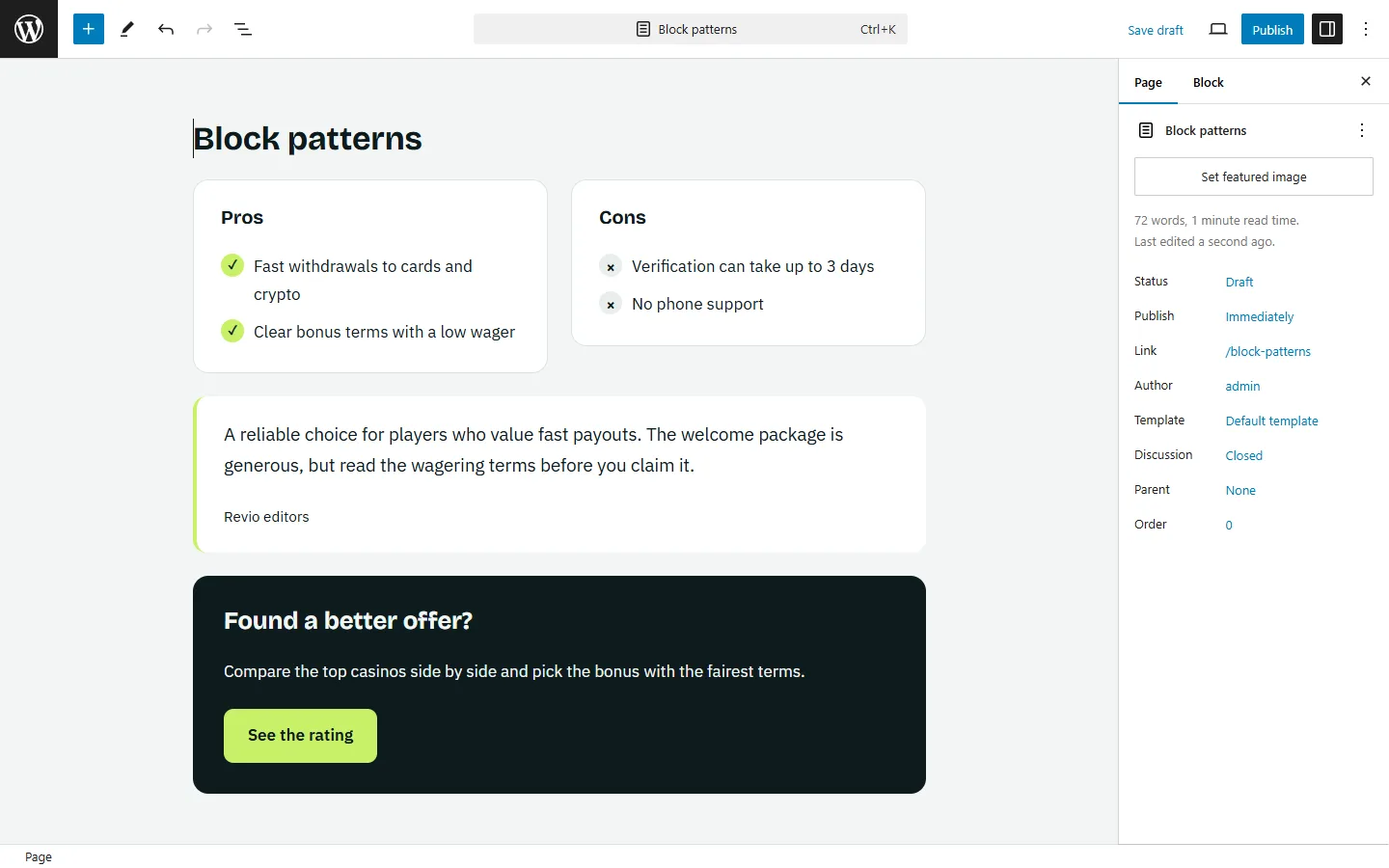
Some core blocks get extra styles in the “Styles” panel:
- Group — Card (white card with a border) and Dark panel.
- List — Checkmarks and Crosses, for pros and cons.
- Quote — Verdict, for the conclusion of a review.
Patterns
In the inserter, Patterns → Revio has ready sections: Pros and cons, Editor verdict and Call to action. Insert one and change the texts.
14 / Customizing
Translation and child theme
Translate the theme
All texts of the theme and the plugin are ready for translation. The text domains are revio (theme) and revio-core (plugin).
- Install the free Loco Translate plugin.
- Open Loco Translate → Themes → Revio (and Plugins → Revio Core), add your language and translate.
- Texts you type yourself — block headings, casino reviews, menus — are translated by editing them, or with a multilingual plugin such as WPML or Polylang.
Child theme
Put your PHP changes and extra CSS in the child theme revio-child. To change a template, copy it from revio to the same path in revio-child and edit the copy, e.g. template-parts/casino/hero.php.
Only small CSS tweaks? Use Customize → Additional CSS — no child theme needed.
15 / Code
For developers
Content types
| Type | Slug | Address |
|---|---|---|
| Casinos | casino | /casino/name/ |
| Bonuses | bonus, taxonomy bonus_type | /bonus/name/, /bonuses/type/ |
| Complaints | complaint | /complaint/name/ |
Fields are post meta with the prefix _revio_, registered with show_in_rest. Read them with revio_meta( 'score', $post_id ). Templates are in single-casino.php, single-bonus.php, single-complaint.php and template-parts/.
Filters
// Turn a module on or off in code (complaints, accounts).
add_filter( 'revio_feature', function ( $on, $module ) {
	return 'complaints' === $module ? false : $on;
}, 10, 2 );

// More editors get complaint emails.
add_filter( 'revio_editor_emails', function ( $emails ) {
	$emails[] = '[email protected]';
	return $emails;
} );

// Change or skip any Revio email.
// Types: confirm, email_change, received, new_complaint, published,
// message, rep_new, rep_message, editor_message, status, overdue.
add_filter( 'revio_email', function ( $email, $type ) {
	if ( 'overdue' === $type ) {
		return false; // No daily overdue list.
	}
	$email['headers'] = 'Reply-To: [email protected]';
	return $email;
}, 10, 2 );

// The finished HTML of every email, e.g. to add a logo image.
add_filter( 'revio_email_html', function ( $html, $email, $type ) {
	return $html;
}, 10, 3 );

// Casinos and bonuses per page in the lists.
add_filter( 'revio_casinos_per_page', fn() => 20 );
add_filter( 'revio_bonuses_per_page', fn() => 24 );

// The sign-up confirmation email.
add_filter( 'revio_confirmation_email', function ( $email, $user, $url ) {
	$email['subject'] = 'Welcome! Please confirm your email';
	return $email;
}, 10, 3 );
Cookie consent in code
// PHP: did the visitor agree to analytics?
if ( function_exists( 'revio_has_consent' ) && revio_has_consent( 'analytics' ) ) {
	// …
}

// JavaScript: react to the choice.
document.addEventListener( 'revio:consent', ( event ) => {
	if ( event.detail.analytics ) {
		// load analytics
	}
} );
Actions
| Action | When |
|---|---|
revio_user_registered | A player created an account ($user_id). |
revio_email_confirmed | A new account confirmed its email ($user_id). |
revio_complaint_filed | A complaint was sent from the form ($post_id, $guest). |
The forms also fire the core hooks login_form, register_form, lostpassword_form, register_post and registration_errors, so captcha and anti-spam plugins work with them.
16 / Help
FAQ and support
The casino pages show “Page not found”.
Open Settings → Permalinks and click Save Changes once. This refreshes the addresses.
Players do not get the confirmation email.
Your host does not send email reliably. Install an SMTP plugin, see Emails.
Guests see “Log in to file a complaint”.
Sign-up is closed. Turn on Settings → General → Anyone can register.
The “File a complaint” button is missing.
Choose the page with the complaint form in Customize → Revio pages.
A casino is not in the rating.
Its editor score is 0. Give it a score from 0.1 to 10.
I do not need complaints.
Turn the module off in Settings → Revio.
Support
Support is included with your ThemeForest purchase. Send a message through the Support tab of the item page with your WordPress and PHP versions, the address of the page and, if possible, a screenshot. Support covers bugs and questions about the theme features; it does not include custom changes.
17 / About
Credits and changelog
Credits
- Fonts: Bricolage Grotesque, Onest, IBM Plex Sans, JetBrains Mono — SIL Open Font License 1.1. Bundled with the theme, never loaded from third-party servers.
- TGM Plugin Activation 2.6.1 — GPL-2.0-or-later.
- Icons are drawn for the theme. Demo casino brands and logos are fictional.
Changelog
1.0 — October 2026
- Initial release.